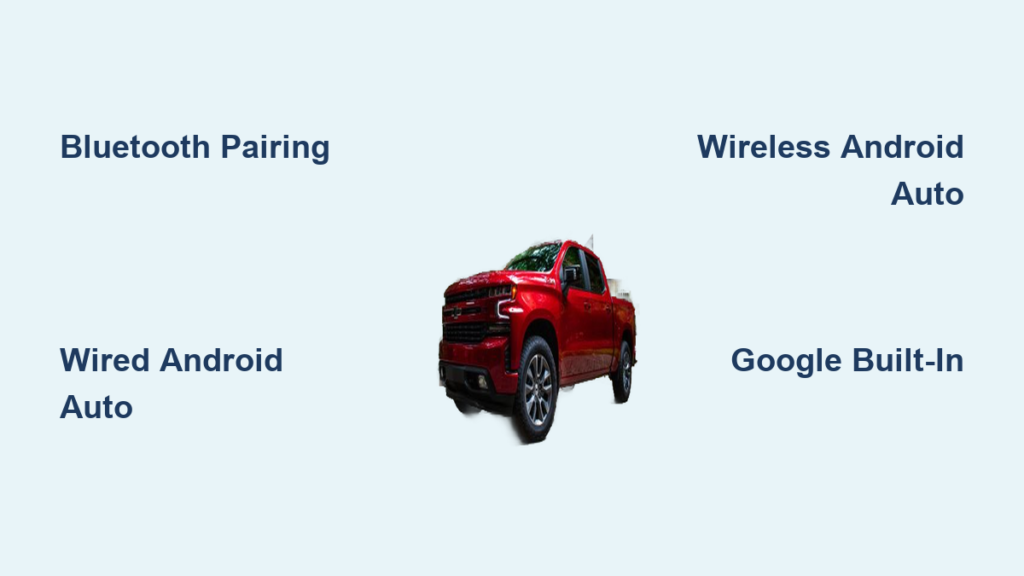
If you’re wondering how to connect your Android phone to a Chevy Silverado, you’re not alone. Millions of drivers rely on seamless smartphone integration for navigation, music, and hands-free calling, especially in powerful trucks like the Silverado. The good news? Connecting your Android device is straightforward, whether you’re using basic Bluetooth, wired Android Auto, or wireless projection. Depending on your Silverado’s model year and trim, you can enjoy everything from simple call routing to full Google Assistant integration on the infotainment screen.
This guide walks you through every method, including Bluetooth pairing, wired and wireless Android Auto, and Google Built-in for compatible EVs, with clear, step-by-step instructions. You’ll also learn troubleshooting tips, compatibility details, and best practices to keep your connection smooth and safe. Whether you’re driving a 2019 or a 2024 Silverado, this is your complete roadmap to full Android integration.
Check Compatibility First
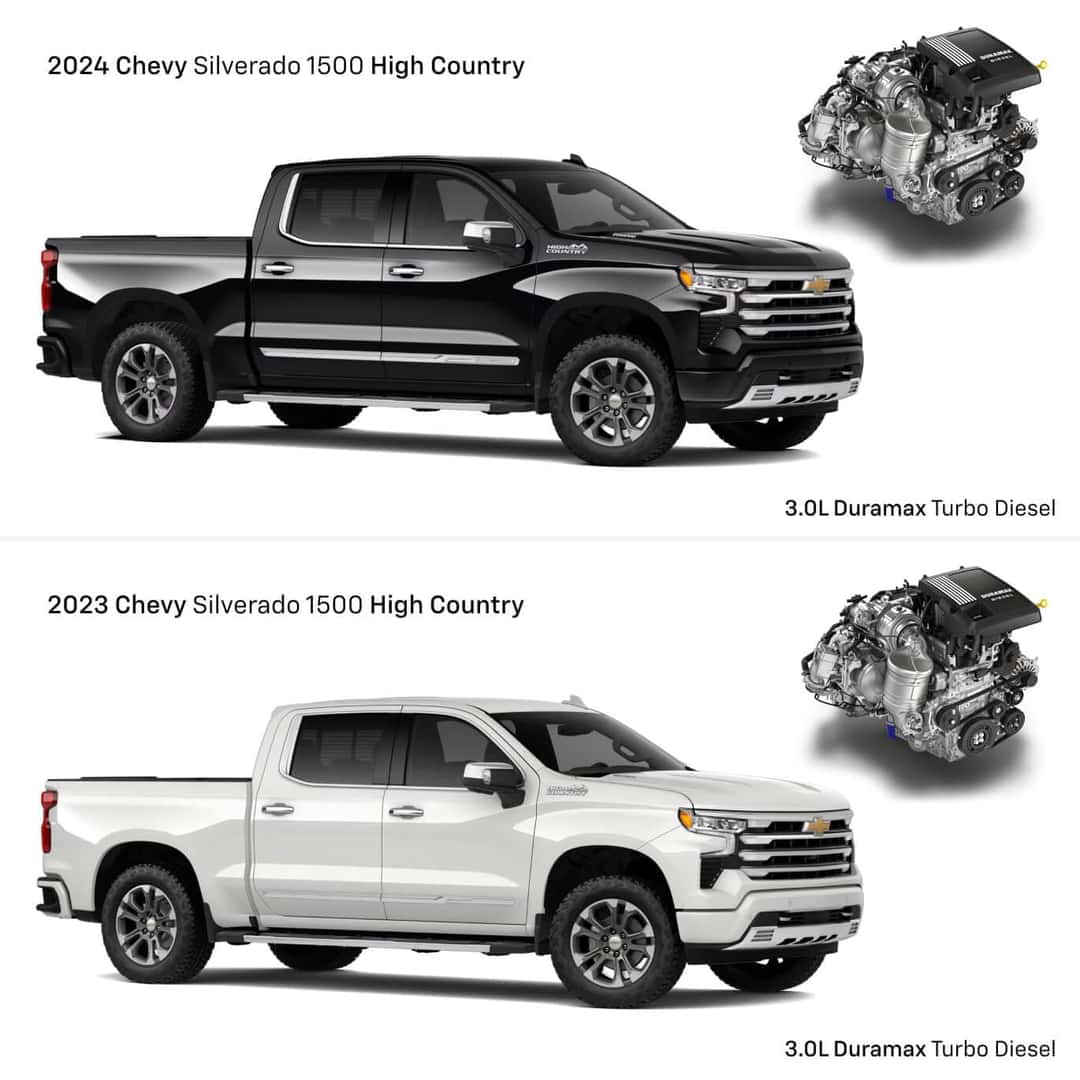
Before connecting, confirm what your Silverado supports based on model year and trim.
Wired Android Auto (All Models 2016+)
- Available on all Chevy Silverado models from 2016 onward.
- Requires a USB data cable and a compatible port in the console.
- Supports core apps: Google Maps, Spotify, WhatsApp, and voice commands via Google Assistant.
- No subscription fee, fully included with the vehicle.
Wireless Android Auto (2020+ Models)
- Standard on High Country, LTZ, and RST trims with Infotainment 3 or 4 systems.
- Eliminates the need for a cable after initial setup.
- Requires Bluetooth and Wi-Fi enabled on your phone.
- Auto-connects when you enter the vehicle.
Google Built-in (EV Models Only)
- Found in Chevrolet electric trucks like the Silverado EV.
- Native Google Maps, Google Assistant, and Google Play built into the system.
- Still requires Bluetooth pairing for calls and personal media.
Prepare Your Android Phone
Get your device ready to pair. Skip this step, and you’ll likely face connection failures.
Enable Bluetooth and Wi-Fi
- Go to Settings, then Connected Devices, then Bluetooth, and turn it On.
- For wireless Android Auto, also enable Wi-Fi, even though it uses Wi-Fi Direct.
- Open the Bluetooth menu to ensure your phone is discoverable.
Install Required Apps
- Download Android Auto from the Google Play Store if not pre-installed.
- Update Google Play Services, Google Maps, and your preferred media apps like Spotify or YouTube Music.
- Ensure your Android OS is up to date.
Use a Quality USB Cable (For Wired Connection)
- Avoid cheap or charging-only cables. They often fail to transmit data.
- Use the original cable that came with your phone or a certified USB 2.0 or higher data cable.
- Inspect the cable and phone port for debris or damage.
Pair via Bluetooth for Calls and Audio
Use this method to stream music and take calls without Android Auto.
Start Pairing from the Silverado
- With the truck in Park and the engine on, tap the Phone icon on the infotainment screen.
- Select Add New Phone or Pair Device.
- The system will search for nearby devices.
Select “My Chevrolet” on Your Phone
- On your Android phone, open Bluetooth settings.
- Look for “My Chevrolet” followed by letters or numbers like “My Chevrolet ABC123.”
- Tap it to begin pairing.
Confirm the 6-Digit PIN
- A six-digit code such as 113 668 will appear on both screens.
- Verify the numbers match exactly.
- Tap Pair on your phone and Yes on the truck’s display.
Grant Permissions for Full Access
After pairing, allow the vehicle to access:
- Contacts for caller ID
- Call History
- Media Audio for music
- Messages to read and reply via voice
Note: Skip contacts, and you’ll still get audio, but no caller name display.
Once done, your phone is connected. You can now make calls via the steering wheel and stream music through the speakers.
Connect via Wired Android Auto
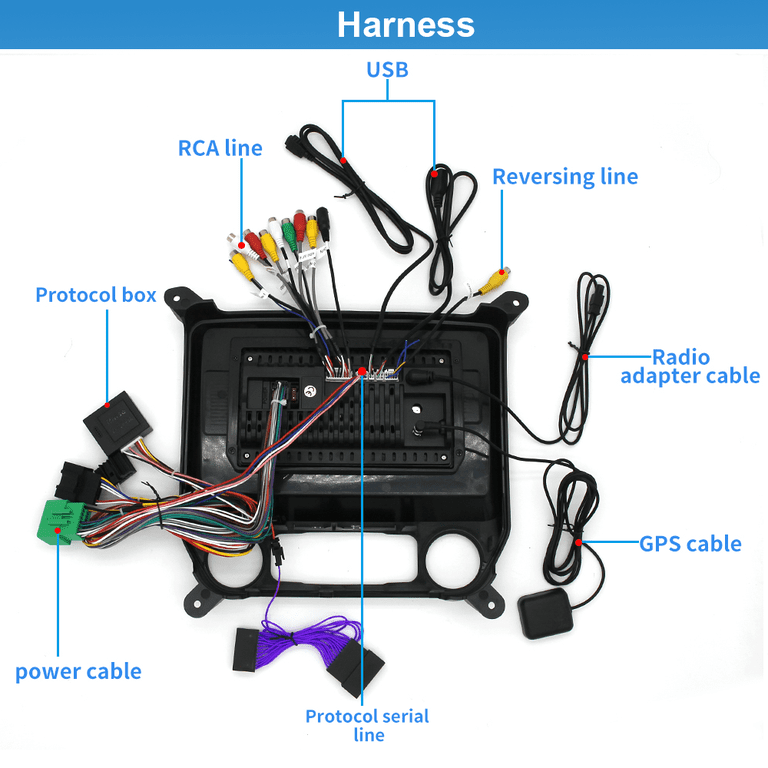
Get full app integration using a USB cable.
Plug Into the Correct USB Port
- Not all USB ports support data. Look for:
- A USB symbol or Android Auto icon near the port.
- Ports located in the center console or dashboard.
- Use a high-speed data cable, either USB-A to USB-C or USB-C to USB-C.
Launch Android Auto on Screen
- Plug in your phone.
- On the infotainment screen, tap the Android Auto or Projection icon.
- If prompted, download the Android Auto app from the Play Store.
Accept Permissions and Terms
- Review and accept the Terms of Service on the vehicle screen.
- On your phone, allow Android Auto to access:
- Location
- Contacts
- Media
- Microphone for voice commands
Use the Android Auto Interface
The screen will switch to a simplified, driver-friendly layout with:
- Google Maps or Waze for navigation
- Spotify, YouTube Music, or Pandora for media
- Google Assistant button for voice control
- Messaging apps like WhatsApp and SMS with voice replies
Pro Tip: Set Spotify as your default player in Android Auto settings so it launches automatically.
Set Up Wireless Android Auto (2020+ Models)
No cables. Just walk in, start driving, and go.
Ensure Prerequisites Are Met
- Your Silverado must support wireless Android Auto. Check your trim: High Country, LTZ, or RST with a large screen.
- Your phone must have Bluetooth and Wi-Fi turned on.
- You should already be paired via Bluetooth from earlier steps.
Initiate Wireless Connection
- Tap the Android Auto icon on the home screen.
- Select Connect Wirelessly or wait for the system to detect your phone.
- A prompt will appear on your phone asking to “Connect to Android Auto via Wi-Fi.”
- Tap Connect.
Confirm Automatic Future Launch
- Once connected, the Android Auto interface loads on screen.
- Next time, as long as Bluetooth and Wi-Fi are on, it should connect automatically when you start the truck.
Troubleshooting Tip: If it doesn’t auto-connect, disable battery saver modes that may restrict background app usage.
Use Google Built-in (Silverado EV Only)

For electric Silverado models with native Google integration.
Access Phone Settings on Display
- Tap the Phone icon.
- Go to Manage Phones, then Add Phone.
Pair via Bluetooth
- On your Android phone, ensure Bluetooth is on and discoverable.
- Select your Chevrolet EV from the list.
- Match the PIN code shown on both screens.
- Confirm on both devices.
Enjoy Native Google Features
- Google Maps built-in, no phone projection needed.
- Google Assistant controls climate, navigation, and media.
- Google Play Music, Spotify, and other apps stream through the car’s audio system.
- Calls and messages use the vehicle’s mic and speakers.
Note: This isn’t Android Auto. It’s deeper integration where the car runs Google apps natively.
Troubleshoot Common Connection Issues

Even with the right steps, problems happen. Here’s how to fix them fast.
“Device Not Found” During Pairing
Check Phone Discoverability
- Open the Bluetooth settings on your phone.
- Make sure no other devices like headphones or smartwatches are actively connected.
- Toggle Bluetooth off and back on.
Restart Infotainment System
- Hold the Power and Home buttons on the screen for 10 seconds.
- Wait for the system to reboot.
- Try pairing again.
Android Auto Won’t Launch (Wired)
Test a Different USB Cable
- Swap in a known working data cable.
- Avoid cables labeled “charge only.”
Clean the USB Port
- Use a dry toothbrush or compressed air to remove lint from the vehicle port and phone jack.
Update Android Auto App
- Open Google Play Store.
- Search for Android Auto.
- Tap Update if available.
Wireless Android Auto Disconnects Frequently
Disable Battery Optimization
- Go to Settings, then Apps, then Android Auto, then Battery.
- Select Unrestricted or Don’t Optimize.
- Repeat for Google Play Services.
Ensure Wi-Fi Is Always On
- Some phones disable Wi-Fi when idle.
- Go to Settings, then Wi-Fi, then Advanced, then Keep Wi-Fi On During Sleep, and set to Always.
“No Signal” or Black Screen on Android Auto
Check USB Port Power
- Try a different USB port in the vehicle.
- Some ports are only for charging.
Re-pair from Scratch
- On the Silverado: Phone, then Manage Phones, then Remove Device.
- On your phone: Bluetooth, then Forget “My Chevrolet.”
- Restart both devices and re-pair.
Optimize Your Android-Silverado Experience
Make the connection smarter and safer.
Set Default Apps
- Open the Android Auto app on your phone.
- Go to Settings, then Apps.
- Choose your preferred:
- Navigation app like Google Maps or Waze
- Music app like Spotify or YouTube Music
- Messaging app like WhatsApp or Google Messages
Now they’ll launch automatically when you connect.
Enable Driving Mode
- Turn on Do Not Disturb While Driving:
- Settings, then Digital Wellbeing, then Driving Mode, or Settings, then Notifications, then Do Not Disturb.
- Allow only priority contacts to interrupt.
This reduces distractions and auto-replies to texts with “I’m driving.”
Train Google Assistant
- Open Google app, then More, then Settings, then Voice, then Voice Match.
- Say “Hey Google” several times to train recognition.
- Now, voice commands in the truck will be more accurate.
Final Tips for Long-Term Success
Keep your connection reliable for years.
Update Software Regularly
- On your phone: Check Play Store weekly for Android Auto and Google app updates.
- On your Silverado: Enable automatic software updates in Settings, then System, then Software Update.
- Updates often fix bugs and improve compatibility with new Android versions.
Manage Paired Devices
- In the Silverado: Phone, then Manage Phones.
- Remove old or unused phones to avoid connection confusion.
- Limit to 1 to 2 primary devices for best performance.
Use OEM Cables and Avoid Overheating
- Cheap cables fail quickly.
- In hot climates, avoid leaving your phone plugged in when parked, as heat damages batteries and ports.
Frequently Asked Questions About Connecting Android to Chevy Silverado
What year Silverado supports wireless Android Auto?
Wireless Android Auto is available on 2020 and newer Silverado models, typically on High Country, LTZ, and RST trims with Infotainment 3 or 4 systems.
Do I need a special cable for wired Android Auto?
Yes. Use the original OEM cable or a certified USB 2.0 or higher data cable. Charging-only cables will not transmit data and will prevent Android Auto from launching.
Why does my Android Auto keep disconnecting wirelessly?
Battery optimization settings often restrict Android Auto in the background. Disable battery saver for Android Auto and Google Play Services, and ensure Wi-Fi stays on during sleep.
Can I use Android Auto without subscribing to OnStar?
Yes. Core Android Auto and Bluetooth features are standard and free. OnStar subscriptions are only needed for specific services like remote start or built-in turn-by-turn navigation.
How do I reset the Silverado infotainment system?
Hold the Power and Home buttons on the screen simultaneously for about 10 seconds until the system reboots. This clears temporary glitches without affecting paired devices.
Will Google Built-in work on a gas-powered Silverado?
No. Google Built-in is exclusive to Chevrolet electric vehicles like the Silverado EV. Gas-powered Silverados use Android Auto for app integration instead.
Key Takeaways for Connecting Your Android Phone to a Chevy Silverado
Connecting your Android phone to a Chevy Silverado is fast, free, and enhances every drive. Start by confirming your model year and trim to know whether Bluetooth, wired Android Auto, or wireless Android Auto is available. Always pair in Park with Bluetooth enabled, and use a quality data cable for wired connections to avoid frustrating failures.
If something doesn’t work, the fix is usually simple: swap the cable, disable battery optimization, or re-pair from scratch. Once connected, take a few minutes to set default apps and train Google Assistant for the smoothest experience.
Your next step: park your Silverado, grab your Android phone, and follow the Bluetooth pairing steps above. Within minutes, you’ll have hands-free calls, music streaming, and full app access ready for your next drive.