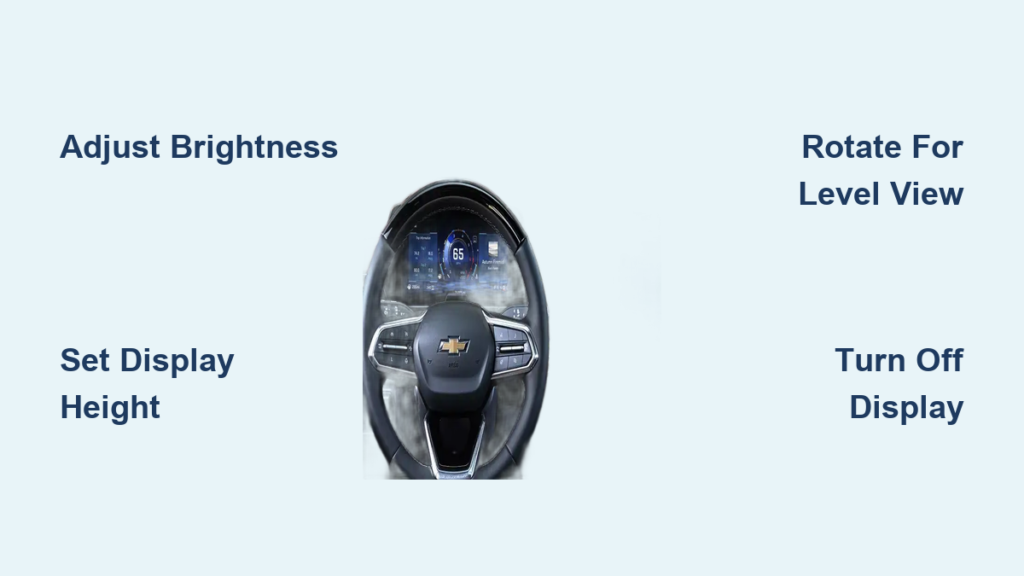
If you’ve been searching for how to change display on Chevy Silverado, the answer is simpler than you might expect. The 2025 Silverado centralizes all heads-up display controls in the infotainment system, eliminating the need for physical buttons or complicated menus. Your speed, posted speed limits, and turn-by-turn directions can all project directly onto your windshield, keeping your eyes where they belong. This guide walks you through every adjustment available, from brightness to rotation, so you can set up your HUD exactly how you want it.
Access HUD Settings Through the Infotainment Screen
Before adjusting anything, you need to find the right menu. The 2025 Silverado moved all HUD controls away from physical buttons and into the touchscreen interface.
Open the Controls App
On your infotainment home screen, tap the Controls icon, which looks like two toggle switches side by side. This menu contains all your vehicle customization options, including lighting, driver-assist features, and display settings. Make sure your truck is in park before diving into the menus.
Select the HUD Option
Inside Controls, find and tap HUD. This opens the heads-up display settings page where all three adjustment sliders live. The layout is clean and intuitive, with each setting clearly labeled so you know exactly what you’re changing.
Adjust the Display Brightness

Brightness affects how visible your HUD is in different lighting conditions. Too bright at night causes glare, while too dim during the day makes the display unreadable.
Use the Brightness Slider
Drag the brightness slider up to increase intensity or down to decrease it. You can lower the slider all the way until the display disappears completely if you want a clean windshield with no projection. During bright daylight, crank it up for maximum visibility.
Let the System Auto-Adjust
Your Silverado automatically tweaks brightness based on ambient light conditions. When it gets dark outside, the system dims the display and lowers its position for better nighttime viewing. You don’t need to manually adjust for every lighting change.
Set the Display Height to Match Your Line of Sight

A poorly positioned HUD forces your eyes to refocus or shift away from the road. Getting the height right makes the feature actually useful.
Raise or Lower the Projection
Use the height adjustment slider to move the projected image up or down on the windshield. Sit in your normal driving position while making changes so you can see exactly where the display lands in your field of view. The goal is to have the HUD appear just above the hood line without blocking your forward vision.
Fine-Tune for Driver Height
This setting is especially valuable if multiple people drive the same truck. Taller drivers typically need a higher projection, while shorter drivers benefit from a lower setting. Take a moment to find your sweet spot before hitting the road.
Rotate the Display for a Level Read
Sometimes the projected text appears tilted, especially if your seating position or windshield angle creates an awkward reflection. The rotation tool fixes this.
Adjust Clockwise or Counterclockwise
Tap the rotate function and slide it left or right to tilt the display in either direction. Small adjustments work best since even a few degrees can dramatically improve readability. The goal is perfectly level text that doesn’t strain your eyes.
Make Changes While Parked
Only adjust rotation when your vehicle is stationary. Step back into the driver seat after each small change to verify the text looks level from your actual viewing angle. Over-rotating makes numbers harder to read, so work in tiny increments.
Turn Off the Heads-Up Display Completely

Not everyone wants a projection on their windshield, and that’s perfectly fine. Turning off the HUD takes just one tap.
Tap the Power Icon
On the HUD settings screen, look for the circular power icon on the left side. Tap it once and the display shuts off immediately. The next time you start your truck, the HUD returns with your last saved settings unless you disable it again.
Know When Disabling Helps
Consider turning off the HUD during heavy rain when water distorts the projection, in low-light situations where reflections become distracting, or simply if you prefer an unobstructed windshield. There’s no downside to using the feature only when you want it.
Save Your Settings for Consistent Results
Once you’ve dialed in your perfect setup, you want it to stick. The Silverado remembers your preferences, so you won’t have to redo this process every drive.
Rely on Automatic Memory
Your brightness, height, and rotation settings save automatically when you exit the menu. The next time you start the vehicle, the HUD appears exactly as you left it. If the system auto-adjusts for lighting conditions, it returns to your baseline once ambient light normalizes.
Adjust for Changing Conditions
Remember that darker environments call for lower brightness and a lower display position. If you frequently drive at night, consider setting up two preferred configurations and toggling between them as needed.
Frequently Asked Questions About Chevy Silverado Display Settings
Where is the HUD button on a Chevy Silverado?
The 2025 Silverado does not have a physical HUD button. All heads-up display controls live in the infotainment screen under Controls, then HUD. Older models had a button to the left of the steering wheel, but the current generation moved everything to the touchscreen.
Can you turn off the heads-up display on a Silverado?
Yes. Open the HUD settings screen and tap the circular power icon on the left side. The display shuts off immediately and stays off until you re-enable it or start the vehicle again.
Does the Chevy Silverado HUD show navigation?
Yes, when navigation is active, turn-by-turn directions appear on the heads-up display along with your current speed and posted speed limits. This keeps routing information in your line of sight without requiring you to glance at the center screen.
Why is my heads-up display blurry?
A blurry HUD usually means the inside of your windshield is dirty or smudged. Clean the glass thoroughly with a microfiber cloth. If the issue persists, verify your brightness setting is high enough for current lighting conditions.
Does the HUD auto-adjust at night?
Yes, the system automatically dims the display and lowers its height when ambient light decreases. This provides optimal nighttime visibility without requiring manual adjustments every time it gets dark.
Key Takeaways for Customizing Your Silverado Display
Learning how to change display on Chevy Silverado comes down to three main sliders: brightness, height, and rotation. All controls live in the infotainment system under Controls, then HUD, making the entire process digital and button-free. The system also auto-adjusts for lighting conditions, so you spend less time tweaking and more time driving.
Start by parking your truck, opening the Controls app, and selecting HUD. Adjust each slider to match your height, seating position, and visibility preferences. Test your setup on a short drive to confirm everything reads clearly from your line of sight. Once dialed in, your HUD will provide speed, speed limits, and navigation directions exactly where you need them, keeping your eyes on the road and your focus where it belongs.