You’re not alone if you’ve searched “how to turn off Wi-Fi in Chevy Silverado” and come up empty. Many owners want to disable the hotspot for privacy, data savings, or peace of mind. But here’s the hard truth: there is no software toggle to completely power down the Wi-Fi radio in modern Chevy Silverado models. Despite full control over other vehicle settings, GM has not provided a user-accessible “Off” switch for the built-in Wi-Fi hotspot.
This doesn’t mean you’re powerless. While you can’t fully shut off the Wi-Fi hardware, you can limit access, secure the network, and stop data usage. In this guide, you’ll learn exactly what’s possible, why GM restricts full deactivation, and how to manage connectivity safely without risking critical truck functions.
Access Wi-Fi Settings on the 13″ Screen

To begin managing your Silverado’s Wi-Fi, you need to navigate the infotainment system correctly. The process is straightforward, but the options are limited.
Turn On Vehicle and Unlock the Screen
Ensure the truck is powered on in “Run” or “Accessory” mode and the touchscreen is unlocked. The Wi-Fi system only becomes fully accessible when the vehicle is awake.
Navigate to Wi-Fi Management
From the home screen:
1. Tap Settings
2. Select Wi-Fi
3. Choose Manage Wi-Fi networks
Here, you’ll see the current hotspot name (SSID) and default password. You can also view connected devices if any are linked.
Confirm No Power-Off Option Exists
Despite the detailed menu, no “Turn Off,” “Disable,” or “Power Down” option appears. This has been verified across model years with the 13″ Google Built-in system. You can modify credentials or block devices, but the Wi-Fi radio continues broadcasting in the background.
Modify Hotspot Settings to Limit Access
Since you can’t turn off Wi-Fi, the next best step is securing it. These changes prevent unauthorized use and reduce exposure.
Change SSID to a Random Name
A custom SSID makes your truck’s hotspot less discoverable:
– In Manage Wi-Fi networks, tap Change Network Name
– Enter a non-identifiable name (e.g., “Device_123” instead of “Silverado_Hotspot”)
– Avoid using personal info like your name or license plate
This won’t stop the signal, but it reduces the chance of someone intentionally connecting.
Set a Strong, Complex Password
The default password is case-sensitive and often printed in the manual or on-screen. Replace it immediately:
– Use 12+ characters with mixed letters, numbers, and symbols
– Example: K9m$2qP!xR8n
– Do not reuse passwords from other accounts
Even if the network broadcasts, a strong password blocks unauthorized access.
Block Unknown Devices
Some users report a checkbox labeled “Allow other devices to connect.” If present:
– Uncheck this box to prevent new devices from joining
– Only previously paired devices may reconnect if already trusted
Note: This feature varies by firmware version. On some trucks, the option is missing or grayed out.
Stop Data Usage Without Killing Wi-Fi
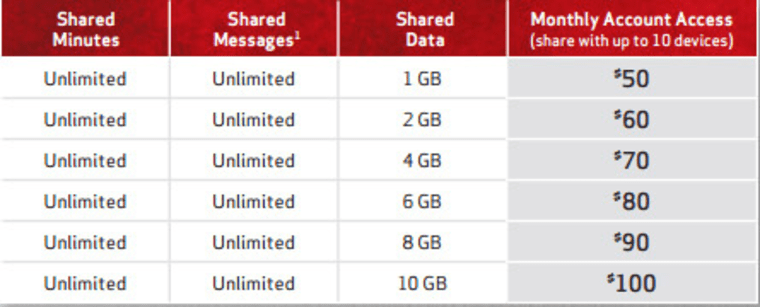
If your goal is to halt data consumption rather than eliminate the signal, you have more control through your carrier.
Suspend Your Data Plan via Carrier
The Wi-Fi hotspot requires an active data plan from AT&T or Verizon for internet access:
– Log into your MyChevrolet account or carrier portal
– Locate your vehicle under “Connected Services”
– Suspend or cancel the data plan
Once suspended:
– The hotspot may still broadcast locally
– No internet will be available to connected devices
– OTA updates pause until service resumes
This is the most effective way to stop data charges and remote connectivity.
Choose Pay-As-You-Go or Let Free Trials Expire
Avoid auto-renewing subscriptions:
– Let free trials expire without renewal
– Use short-term passes only when needed, such as on road trips
– Monitor billing cycles to cancel before the next charge
Many owners keep Wi-Fi enabled but go months without paying for data, effectively creating a local-only network.
Why Wireless CarPlay and Android Auto Need Wi-Fi
A major reason GM keeps Wi-Fi always-on is that wireless smartphone projection depends on it.
Bluetooth Only Handles Pairing
Contrary to popular belief:
– Bluetooth manages initial handshake and authentication
– Wi-Fi carries the actual video and app data
Without Wi-Fi, wireless projection fails instantly, even if Bluetooth stays connected.
Disabling Wi-Fi Breaks Projection
If you could turn off the radio:
– Wireless CarPlay and Android Auto would disconnect
– You’d be forced to use a USB cable
– Reconnection wouldn’t work until Wi-Fi reactivated
So while you may want to disable Wi-Fi, doing so defeats one of the system’s core conveniences.
Risks of Physical Wi-Fi Disabling
Some forums suggest extreme measures. Do not attempt these unless you accept the consequences.
Disconnecting the OnStar Module
The Wi-Fi radio is part of the OnStar module, which also handles:
– Emergency crash response
– Remote start and lock/unlock
– Stolen vehicle assistance
– Navigation updates
– Voice assistant features like Google
Physically unplugging or disabling this unit:
– Stops Wi-Fi and cellular connectivity
– Breaks safety features, including the SOS button
– May trigger warning lights on the dashboard
– Can interfere with software updates and diagnostics
One user reported losing remote start and turn-by-turn navigation after module removal, and restoration required dealer reprogramming.
No Isolated Hardware Switch Exists
There is no dedicated fuse or switch for Wi-Fi alone. All connectivity shares the same telematics hub. You can’t surgically disable just the hotspot.
Privacy vs. Modern Truck Design
GM builds today’s Silverados as connected devices, not isolated machines. That means trade-offs.
Real Risk of Remote Hacking Is Low
Despite fears:
– No verified cases exist of hackers taking control of steering or brakes via Wi-Fi
– Attack surface is limited to infotainment and data layers
– Critical systems like brakes and powertrain operate on isolated networks
Security researchers agree: the risk is minimal for current non-autonomous trucks.
You Can’t Disable Other Connected Features Either
Consider these always-on systems:
– Google Built-in: Always listening for “Hey Google” (cannot be fully disabled)
– Digital FM Radio: Receives traffic and weather data over airwaves
– OnStar Telemetry: Sends anonymized driving data to GM
Wi-Fi is just one part of a broader connected ecosystem.
Troubleshoot Wi-Fi Conflicts
Even if you don’t want to turn off Wi-Fi, conflicts can arise, especially with smartphone integration.
Fix Reconnection Loops
Problem: The truck keeps trying to join saved Wi-Fi networks, such as your home garage.
Solution:
– Go to Wi-Fi > Manage Networks
– Forget saved networks you no longer use
– Disable auto-join on your phone when near the truck
This stops ping-pong behavior between home Wi-Fi and the hotspot.
Resolve Android Auto Connection Issues
Problem: Your phone fails to connect wirelessly.
Cause:
– The phone tries to use home Wi-Fi instead of the truck’s direct link
– Conflicting network priorities create confusion
Fix:
– On your phone, disable Wi-Fi before entering the truck
– Let CarPlay or Android Auto initiate the connection
– Re-enable Wi-Fi only after projection starts
Match Your Goal to the Right Strategy

Different owners need different solutions. Here’s how to pick yours.
For Privacy-Conscious Owners
Goal: Minimize wireless exposure.
Actions:
– Change SSID to a random string
– Set a complex password
– Cancel your data plan
– Accept that OnStar and Google remain active
Reality: Full radio shutdown is not possible without hardware risk.
For Wireless CarPlay Users
Goal: Keep seamless smartphone integration.
Actions:
– Leave Wi-Fi enabled
– Secure the network with a strong password
– Use USB only as a backup
Warning: Disabling Wi-Fi breaks wireless projection.
For Data Savers
Goal: Stop data usage and prevent tethering.
Actions:
– Suspend your data plan via AT&T or Verizon
– Block device connections in settings
– Monitor your account for accidental reactivation
Result: No charges, no internet, but the hotspot still broadcasts locally.
Frequently Asked Questions About Chevy Silverado Wi-Fi
Can you turn off the Wi-Fi hotspot in a Chevy Silverado?
No. There is no software toggle in the 13″ infotainment screen or the MyChevrolet app that powers down the Wi-Fi radio. The hotspot hardware remains active to support OTA updates, OnStar, and Google Built-in services.
Why does my Chevy Silverado Wi-Fi keep turning on by itself?
The Wi-Fi radio is designed to stay on continuously. It supports wireless Apple CarPlay, Android Auto, OnStar emergency services, and over-the-air software updates. GM has not provided a user-accessible off switch.
Does disabling OnStar also turn off Wi-Fi?
Physically disconnecting the OnStar module can kill Wi-Fi, but it also disables emergency crash response, remote start, stolen vehicle assistance, and navigation updates. This is not recommended and may trigger dashboard warning lights.
How do I stop my Silverado from using mobile data?
Log into your MyChevrolet account or your carrier’s portal (AT&T or Verizon) and suspend or cancel the data plan. The hotspot may still broadcast locally, but no internet will be available to connected devices.
Will turning off Wi-Fi break wireless CarPlay?
Yes. Wireless Apple CarPlay and Android Auto require both Bluetooth and Wi-Fi to function. Bluetooth handles pairing, while Wi-Fi carries the actual video and app data. Without Wi-Fi, you must use a USB cable.
Is it safe to disconnect the OnStar module to kill Wi-Fi?
No. The OnStar module controls multiple safety and telematics features. Disconnecting it can disable SOS emergency calls, remote commands, and navigation. Dealer reprogramming may be required to restore full functionality.
Key Takeaways for Managing Wi-Fi in Your Silverado

Let’s be clear: you cannot turn off Wi-Fi in a Chevy Silverado using standard controls. There is no setting in the 13″ screen, no option in the MyChevrolet app, and no hidden menu combination that powers down the radio. The system is designed to stay connected for updates, safety, and convenience.
But you’re not helpless:
– Secure the network with a new SSID and strong password
– Block devices from joining through hotspot settings
– Stop data flow by canceling your subscription
– Forget external networks to prevent connection conflicts
Physical disconnection of the OnStar module remains the only way to fully disable Wi-Fi, but at the cost of safety features, convenience, and potential repair bills.
If complete digital isolation is your priority, consider whether a modern connected truck aligns with your expectations. For everyone else, smart credential management and data plan control offer a practical middle ground, keeping your Silverado functional, secure, and under your control. Start by changing your hotspot password today to lock out unauthorized users.