A wrong clock in your Chevy Silverado can throw off your whole day. Maybe you just swapped the battery, drove across state lines, or lost an hour to daylight saving time. Whatever the reason, the fix is simple once you know which buttons to press. The exact steps to change the clock in a Chevy Silverado depend on your model year and whether you have physical buttons, steering wheel controls, or a touchscreen.
This guide walks you through every method, from older trucks with dashboard buttons to newer models with full infotainment systems. You’ll also learn how to turn on automatic GPS syncing and fix common issues that prevent the clock from updating.
Identify Your Silverado’s Clock Interface

Before you touch anything, figure out which system your truck uses. The process to change the clock in a Chevy Silverado changes dramatically based on hardware.
Pre-2014 Models with Physical Buttons
Older Silverados often have dedicated “Hour” and “Minute” buttons right on the radio or dashboard. These are the fastest to adjust.
2014–2018 Models with Steering Wheel Controls
Starting around 2014, Chevy moved clock settings into the instrument cluster menu. You control everything through buttons on your steering wheel.
2019 and Newer Models with Touchscreen
The latest Silverados use a central touchscreen running GM’s Infotainment 3 system. Clock settings live inside the on-screen menu.
Change the Clock Using Physical Buttons (Pre-2014)

If your Silverado has dedicated hour and minute buttons, you’re in luck. This is the quickest method.
Steps to Adjust Time with Physical Buttons
- Turn the ignition to ON without starting the engine.
- Press the “Hour” button until the correct hour appears.
- Press the “Minute” button to set the minutes.
- Check the AM/PM indicator and cycle through if needed.
- The time saves automatically with no confirmation step.
⚠️ Note: Some models require you to press and hold the button for 1–2 seconds. If tapping does nothing, try holding it down.
Change the Clock Using Steering Wheel Controls (2014–2018)

Newer Silverados hide the clock settings inside a digital menu. You’ll need the multi-function buttons on your steering wheel.
Access the Settings Menu
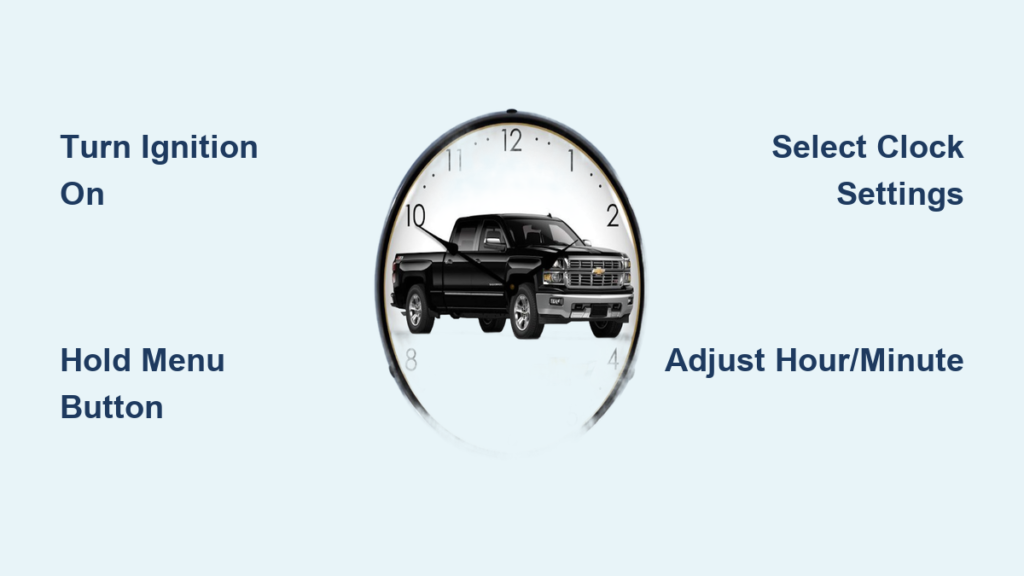
- Turn the ignition to ON but leave the engine off.
- Press and hold the “Menu” button on your steering wheel until the instrument display shows the main menu.
- Use the Up/Down arrows to scroll to “Settings” or “Vehicle Settings.”
- Press “OK” or “Select” to enter the menu.
- Scroll to “Clock” or “Time” and select it.
Adjust and Save the Time
- Use the Up/Down buttons to change the Hour.
- Move to Minutes and adjust as needed.
- Press “OK” to save your changes.
- Press “Back” or “Menu” to return to the main screen.
✅ Pro Tip: If the menu keeps closing or returning to the home screen, turn off your truck completely, wait 30 seconds, and try again. This clears minor software glitches.
Change the Clock Using the Touchscreen (2019 and Newer)

Modern Silverados put everything on the infotainment screen. Here’s how to navigate it.
Open Time Settings on the Touchscreen
- Tap the gear icon (Settings) on the home screen.
- Select System, then tap Time/Date or Clock.
- Choose “Set Time Manually” if automatic sync is turned off.
Set the Time Using Touch Controls
- Tap the hour field and use the +/- arrows to adjust.
- Repeat the process for minutes.
- Select AM or PM if you’re using 12-hour format.
- Tap “Done” or the checkmark icon to save.
🔁 Alternative: You can also use steering wheel controls to navigate the touchscreen menu if the display is unresponsive.
Enable Automatic Time Sync via GPS or OnStar
Skip manual adjustments forever by letting your Silverado set its own clock. This feature uses GPS signals or OnStar to keep time accurate.
Turn On Automatic Time Updates
- Go to Settings > System > Time/Date.
- Toggle “Automatic Time and Date” to ON.
- Confirm the Time Zone matches your current location.
Benefits of Auto Sync
- Automatically adjusts for time zone changes.
- Updates for Daylight Saving Time without any action from you.
- Keeps navigation arrival estimates accurate.
- Restores the correct time after battery disconnects.
❗ Warning: If automatic time is enabled, you cannot manually change the clock. Turn it off first if you need manual control.
🌐 Requirement: Your truck needs a GPS signal or active OnStar connection. If you’re parked underground, sync may fail until you drive into an open area.
Troubleshoot Common Clock Problems
Sometimes the clock refuses to cooperate. Here’s how to fix the most frequent issues.
Clock Won’t Change at All
- Cause: Automatic time sync is enabled.
- Fix: Go to Settings > Time/Date and disable auto sync, then try manual adjustment.
Time Resets After Battery Replacement
- Cause: Power loss clears temporary memory.
- Fix: Manually reset the time or enable auto sync so GPS restores it automatically.
Screen Freezes or Returns to Home Page
- Cause: Software glitch common in 2014–2019 models.
- Fix:
1. Turn the truck completely off.
2. Wait 30 seconds.
3. Restart and try again.
4. If the problem persists, hold the power button for 10+ seconds to force a hard reset.
AM/PM Is Wrong
- Fix: Open Time Settings and manually select the correct AM or PM.
- Better Option: Switch to 24-hour format to avoid confusion entirely.
Touchscreen Is Unresponsive
- Restart your vehicle.
- Check for software updates under Settings > System > Software Update.
- As a last resort, disconnect the battery for 2 minutes.
Best Practices for Keeping Your Clock Accurate
A few simple habits prevent clock problems before they start.
When to Verify the Clock
- After any battery replacement or jump-start.
- Following a software update.
- Twice a year during Daylight Saving Time changes.
- After long-term storage.
Keep a Backup Reference
- Use your phone or smartwatch to verify the correct time.
- Save these instructions in your glove box for quick reference.
Use Auto Sync When Possible
- Reduces driver distraction.
- Keeps navigation and trip logs accurate.
- Eliminates manual input errors.
🛠️ Pro Tip: If you live in a mountainous area with weak GPS signals, disable auto sync and set the time manually for better reliability.
Model-Specific Quick Reference

2014 Silverado Clock Change
- Turn ignition to ON.
- Hold “Menu” on the steering wheel.
- Navigate to Settings > Vehicle Settings > Clock.
- Adjust Hour/Minute with arrow buttons.
- Press OK to save.
2019 Silverado Clock Change
- Tap Settings (gear icon) on the touchscreen.
- Go to System > Time/Date.
- Tap “Set Time Manually.”
- Adjust with on-screen arrows.
- Tap “Done” to save.
Pre-2014 Silverado with Physical Buttons
- Turn ignition to ON.
- Press “Hour” and “Minute” buttons.
- Confirm AM/PM.
- Time saves automatically.
Frequently Asked Questions About Changing the Clock in a Chevy Silverado
Why won’t my Chevy Silverado clock change manually?
If manual adjustments do nothing, “Automatic Time” is likely enabled. Go to Settings > Time/Date and disable auto sync before trying again.
How do I change the clock on a 2014 Chevy Silverado?
Turn the ignition to ON, press and hold the “Menu” button on your steering wheel, then navigate to Settings > Vehicle Settings > Clock. Use the arrow buttons to adjust the hour and minutes, then press OK to save.
How do I set the clock on a 2019 Chevy Silverado?
Tap the Settings gear icon on the touchscreen, select System > Time/Date, then tap “Set Time Manually.” Use the on-screen arrows to adjust the hour and minutes, then tap “Done.”
Does the Chevy Silverado clock adjust for daylight saving time automatically?
Yes, if you have GPS or OnStar enabled and automatic time sync turned on. Otherwise, you’ll need to adjust the clock manually twice a year.
Why does my Silverado clock reset after a battery change?
Disconnecting the battery clears temporary memory. You can either manually reset the time or enable automatic GPS sync to restore it without effort.
Can I switch my Silverado clock to 24-hour format?
Yes. Open Time Settings in the infotainment menu and toggle between 12-hour and 24-hour display formats.
Key Takeaways for Changing the Clock in Your Chevy Silverado
Changing the clock in your Chevy Silverado takes less than a minute once you know the right method. Older models with physical buttons are the fastest, while newer trucks require navigating menus through steering wheel controls or the touchscreen. If you travel often or hate adjusting for daylight saving time, enable automatic GPS sync and let your truck handle the work for you. Always verify the clock after battery service or software updates to keep your schedule running smoothly.