If your Chevy Silverado GPS is not working, you’re not alone. From the “Searching for GPS” loop on 2024 models to complete navigation blackouts in electric variants, these issues are more common than advertised. The root cause isn’t always a broken antenna or faulty software. Often, it’s a simple configuration gap between your phone and the truck’s infotainment system. But when standard fixes fail, deeper hardware or software faults may be to blame.
This guide breaks down exactly why your Silverado’s GPS stops working, how to fix it fast, and when to escalate to dealer-level service. Whether you’re stuck mid-drive with a blank map or facing a full system failure, you’ll learn the precise steps to restore navigation. Everything here comes from real user cases, technical diagnostics, and verified repair protocols.
Fix “Searching for GPS” on 2024 Models
Why the Screen Stalls on “Searching for GPS”
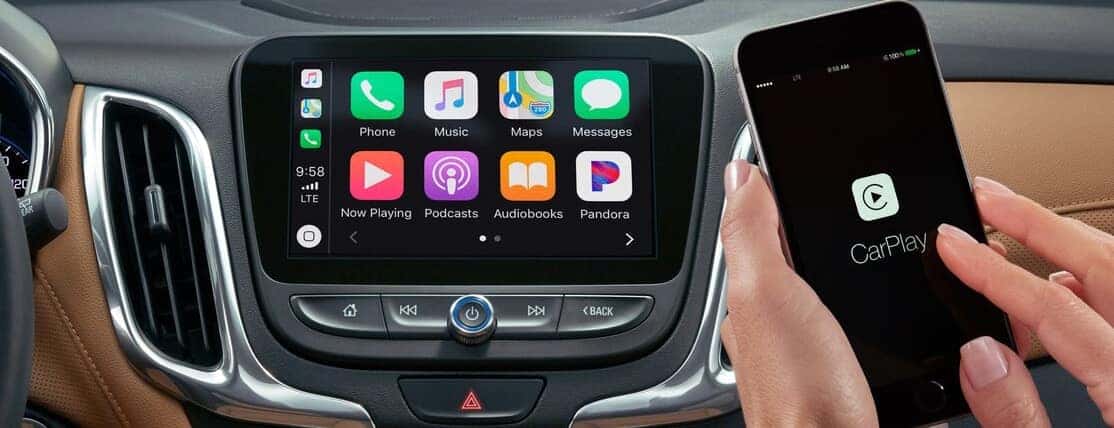
Your 2024 Silverado shows “Searching for GPS” even though your phone’s Google Maps works perfectly? This isn’t a satellite signal issue. It’s a software handoff failure. The truck defaults to its internal GPS antenna when Apple CarPlay isn’t fully authorized. If that antenna is weak or obstructed, the screen never locks onto a position.
But here’s the catch: your phone has a strong GPS signal. The problem is the system won’t use it until CarPlay is properly set up. And you can’t complete setup while driving.
Complete CarPlay Setup While Parked
You must be stopped to fix this. Safety locks prevent CarPlay activation in motion.
-
Park and secure the vehicle
• Bring the truck to a full stop
• Shift into Park
• Engage the parking brake to unlock infotainment controls -
Use a certified USB cable
• Plug your iPhone into the primary USB data port
• Only Apple-certified cables guarantee data transfer. Cheap cables charge but block CarPlay. -
Enable CarPlay on the infotainment screen
• Tap the Apple CarPlay icon on the home screen
• Wait for the prompt to appear on your phone -
Authorize location access on iPhone
• When iOS asks, tap “Allow” for Location Access
• Without this, the truck can’t mirror your phone’s GPS
Once approved, Google Maps or Apple Maps will display live location data. Future drives will auto-connect, so no need to repeat setup.
Prevent Future Signal Loss
• Don’t skip the first-time setup. A software reset may require reauthorization even if you’ve used CarPlay before.
• Keep iOS updated. Outdated phones sometimes fail handshake protocols.
• Avoid wireless CarPlay for navigation. USB provides a stable connection; wireless can drop during tunnel drives or signal-heavy areas.
Diagnose Total GPS Failure in EV Models
No Signal After Reboot? Check Deeper Faults
If your Silverado EV or Ultifi-platform truck shows no GPS at all, even after a restart, this goes beyond configuration. Standard fixes like infotainment resets or 12V battery disconnects often fail here. The issue likely lies in the communication module or core software.
Unlike the 2024 ICE model issue, this is not user-fixable without remote support or dealer tools.
Test OnStar Remote Ping First
Before visiting a dealership, contact OnStar. Agents can remotely “ping” your vehicle, which may wake frozen modules or refresh network registration.
• Call OnStar or use the myChevrolet app to request a system check
• Ask them to verify GPS module status and reboot the telematics unit
• Some users report GPS returning within minutes after a successful ping
This step can save you a trip, especially if the fault is a dormant process, not hardware death.
Try a Hard Reset If Ping Fails
If OnStar confirms no response, attempt a full system flush:
- Turn off the truck
- Open the hood and disconnect the 12V battery
- Wait 15 minutes to drain residual power
- Reconnect and restart
If GPS still fails, the problem is likely hardware or corrupted firmware. Move to dealer service.
When to Visit the Dealer

Software Corruption Requires Dealer Tools
If resets and pings fail, your Silverado may have software corruption in the GPS stack. This happens when an over-the-air update fails or the communication module freezes mid-process.
Symptoms include:
• The infotainment boots normally, but navigation apps won’t load maps or location
• Bluetooth and radio work, but GPS stays dead
A dealership must perform a forced software reflash using GM’s GDS2 or Tech2 tools. Standard OTA updates won’t trigger if the module is stuck.
• Call ahead to confirm the shop has the latest Infotainment OS patch
• Ask if they’ve handled recent GPS module recalls or service bulletins
After the update, GPS function typically returns immediately.
Replace the Communication Module
If software flashing fails, the communication module is likely dead. This unit processes GPS signals, cellular data, and OnStar telemetry.
Symptoms of hardware failure:
• No GPS, no OnStar, no remote start via app
• Error codes like “U0101” (lost communication with GPS module)
• Vehicle logs show “GPS module not responding”
Only a dealer can replace this part. It requires:
• VIN-specific programming
• Antenna alignment calibration
• Post-replacement system scan
Expect 1–2 hours of shop time, including software pairing.
Understand GPS Signal Sources

Vehicle vs. Phone GPS: Know the Difference
Your Silverado uses two GPS sources. Knowing which one is active helps diagnose faster.
| Source | When Used | Reliability |
|---|---|---|
| Truck’s Internal Antenna | No phone connected, CarPlay not authorized | Prone to signal loss under tree cover or in canyons |
| Phone’s GPS (CarPlay/Android Auto) | CarPlay active and authorized | More accurate, uses A-GPS and cellular triangulation |
Pro Tip: Once CarPlay is set up, your phone’s GPS overrides the truck’s antenna. This bypasses weak internal signals, making it the most reliable navigation path.
Connectivity Requirements You Can’t Skip
Use the Right USB Cable
Not all USB cables are equal. For GPS mirroring:
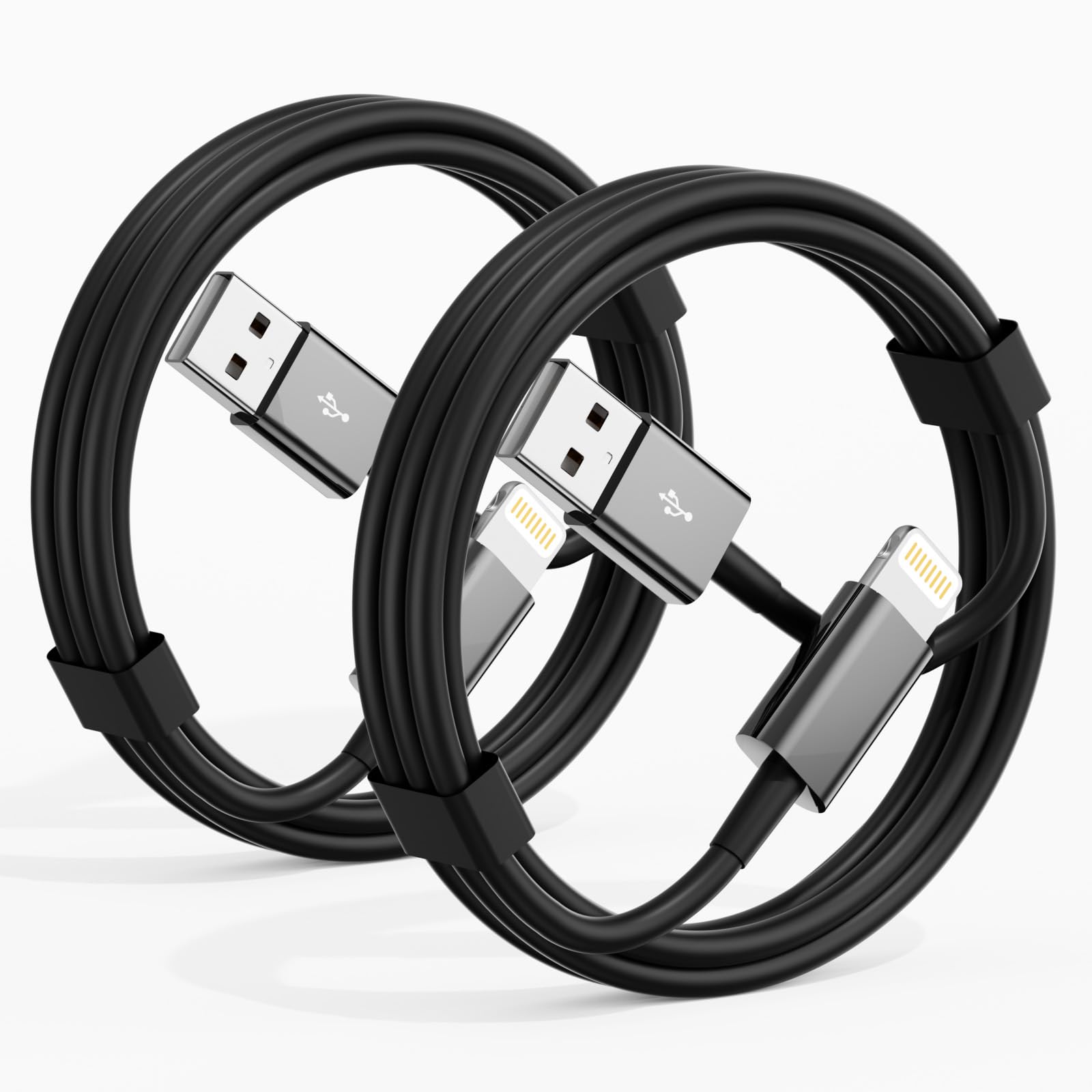
• Use Apple-certified (MFi) cables for iPhones
• For Android, use high-speed data cables (USB 2.0 or higher)
• Avoid charging-only cables. They look identical but lack data wires
Test your cable: If your phone charges but doesn’t prompt CarPlay, the cable is likely the culprit.
Enable Location Permissions on Phone
Even with a perfect cable, GPS fails if permissions are blocked.
On iPhone:
1. Go to Settings > Privacy & Security > Location Services
2. Find Apple CarPlay in the app list
3. Set to “While Using” or “Always”
On Android:
1. Open Settings > Apps > Android Auto
2. Tap Permissions > Location
3. Set to “Allow all the time”
Without this, the truck sees no location data, even if Google Maps runs fine on the phone.
Bypass Safety Lockouts
Why You Can’t Set Up CarPlay While Driving
GM locks CarPlay setup during motion for safety. If the system never completed pairing, you’re stuck with the truck’s weak internal GPS until you stop.
Real-world impact: A driver from Duluth to St. Paul lost navigation for over an hour because setup failed before departure.
Prevention strategy:
• Always complete CarPlay setup before your first drive
• If you restart the infotainment, pull over to reauthorize if prompted
• Consider using Android Auto over wireless if available. Some models allow auto-pairing without driver input.
Diagnostic Decision Tree
Use this flow to pinpoint your issue:
-
Is your phone’s GPS working?
• Yes → CarPlay not set up. Stop and complete pairing.
• No → Check phone settings, restart phone, test in open sky. -
Is CarPlay active but GPS still missing?
• Yes → Software or hardware fault. Try OnStar ping, then dealer. -
Did a reset fail?
• Yes → Likely comms module or firmware issue. Dealer visit required. -
Does OnStar respond?
• No → Module may be offline. Hardware replacement needed.
Prevent Future GPS Failures
Keep Software Updated
Enable automatic OTA updates in:
• Settings > System > Software Update on the infotainment screen
• myChevrolet app. Check for pending updates weekly.
Delayed updates increase corruption risk, especially after GM rolls out new GPS firmware.
Clean USB Ports Regularly
Dirt, dust, or corrosion in the USB port breaks data connections.
• Use compressed air to blow out debris
• Inspect for bent pins, which are common in trucks with heavy glovebox use
• Try a different port if available
Frequently Asked Questions About Chevy Silverado GPS Issues
Why does my Chevy Silverado say “Searching for GPS”?
This message appears when the infotainment system cannot lock onto a satellite signal through the truck’s internal antenna. On 2024 models, it typically means Apple CarPlay was never fully authorized, so the system defaults to the weaker internal antenna instead of your phone’s GPS.
Can I fix a Chevy Silverado GPS not working issue while driving?
No. GM enforces a safety lockout that prevents Apple CarPlay setup while the vehicle is in motion. You must park, shift into Park, and engage the parking brake before you can complete the pairing process.
Do I need to visit a dealer for GPS problems?
Not always. Configuration issues like incomplete CarPlay setup can be fixed at home. However, total GPS failure that persists after a hard reset and OnStar ping usually requires dealer-level software flashing or communication module replacement.
Will disconnecting the battery reset the GPS?
Sometimes. Disconnecting the 12V battery for 15 minutes can clear minor software glitches. However, in EV models and advanced trims, this often fails because the fault lies in corrupted firmware or dead hardware.
How do I contact OnStar for a remote GPS fix?
You can call OnStar directly or use the myChevrolet app to request a system check. Ask the agent to ping your vehicle and verify the GPS module status. Some users see GPS return within minutes after this step.
What is the communication module in a Silverado?
The communication module (comms module) processes GPS signals, cellular data, and OnStar telemetry. If it fails, you lose GPS, OnStar, and remote app functions simultaneously. Replacement requires VIN-specific programming and dealer tools.
Key Takeaways for Restoring Your Chevy Silverado GPS
A non-working GPS in your Chevy Silverado isn’t always a warranty-level issue. For 2024 models, most “Searching for GPS” cases are fixed by completing CarPlay setup while parked. But in EVs and advanced trims, deeper failures like communication module death require OnStar intervention or dealer service.
Act fast: Use the right cable, authorize location access, and stop to complete setup. If that fails, ping OnStar before visiting the shop. And if software flashes don’t work, insist on a comms module diagnostic.
Your navigation should work every time. Now you know how to make it happen.