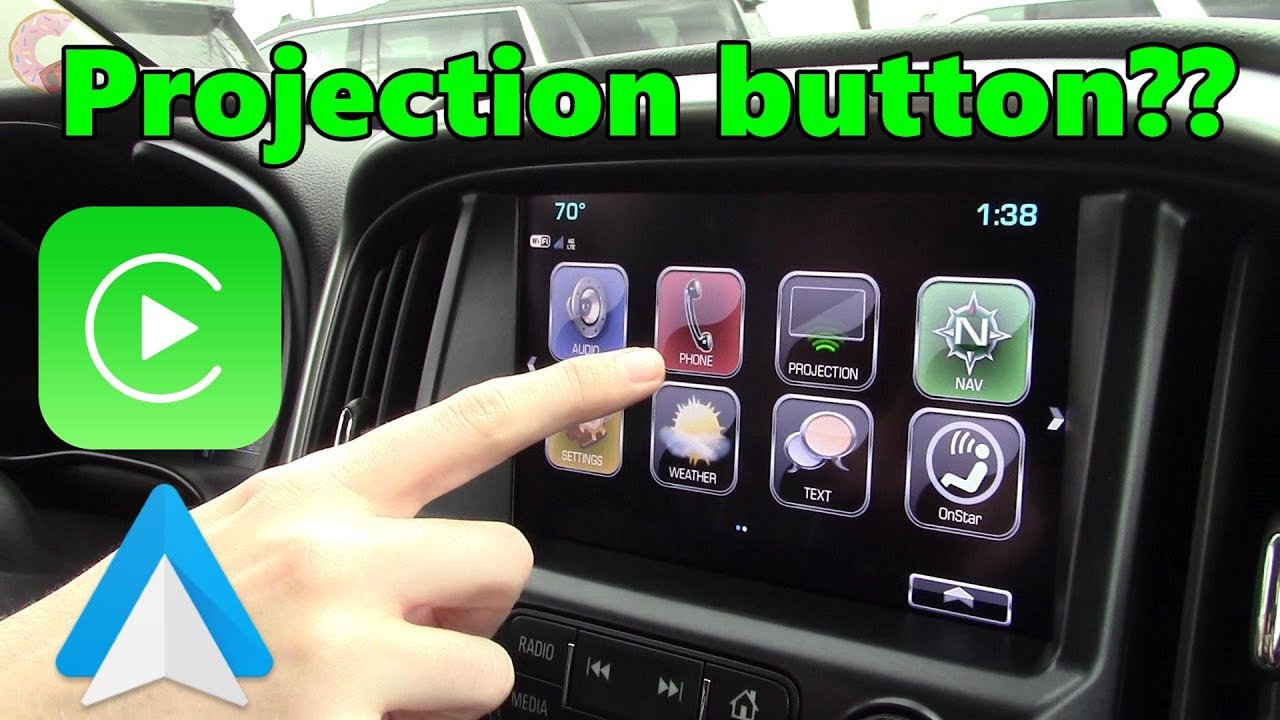
If you’ve spotted a Projection icon on your Chevy Silverado’s MyLink screen or are wondering why it’s missing, you’re not alone. Many 2016 and 2017 Silverado owners ask about how to use projection on Chevy Silverado to access Apple CarPlay and Android Auto, especially when the system doesn’t respond as expected. The good news is that setup is straightforward once you confirm your truck supports it and use the right cable.
The Projection feature mirrors your smartphone’s interface onto the MyLink screen, giving you access to navigation, music, calls, and voice assistants while driving. However, not all 2016 to 2017 Silverados support it out of the box. Hardware version, VIN, and software updates all play a role. This guide walks you through compatibility checks, setup steps, troubleshooting, and upgrade options.
Check If Your Silverado Supports Projection
Before setting anything up, confirm your truck can actually run projection features. Some early 2016 models shipped without the required hardware.
Verify Hardware Compatibility
Your Silverado needs the correct infotainment module to support projection:
– 8-inch MyLink system (with or without navigation)
– 2016+ software-enabled radio (not the older 2015 version)
– USB data port in the front console
Some early 2016 trucks were built with 2015 hardware due to production shortages. These units cannot be upgraded with software alone and require a full head unit replacement.
Use Your VIN to Confirm Eligibility
Contact Chevrolet customer support or visit a dealership with your VIN. They can tell you:
– Whether your truck shipped with projection-ready hardware
– If a free software update is available
– If your build was part of the batch that received a $200 discount (and can’t be upgraded)
⚠️ No Projection Icon?
If you don’t see the Projection icon when no phone is plugged in, your system likely lacks the necessary hardware or software.
Understand the Projection Icon and Its Functions
The Projection icon is your gateway to smartphone integration, but it only activates when a phone is connected.
What the Icon Looks Like and Does
- Appears as a rectangle with two curved lines beneath it, resembling a screen casting signal
- Shows on the MyLink home screen when no phone is connected
- Changes to CarPlay or Android Auto once a compatible device is plugged in and recognized
✅ Pro Tip: The icon does nothing until a phone is connected. It serves as a status indicator rather than an active button.
Set Up Apple CarPlay on Silverado
Apple CarPlay is plug-and-play on supported models. Here’s how to get it working.
Connect Your iPhone
- Use a certified Apple Lightning cable
- Plug into the front USB data port (not charge-only ports)
- Unlock your iPhone
- Tap “Trust This Computer” if prompted
- Tap “Allow” when the CarPlay request appears
Your MyLink screen should switch to the CarPlay interface automatically.
Troubleshoot CarPlay Issues
If CarPlay doesn’t launch, try these steps:
– Use a different high-quality USB cable
– Restart your iPhone
– Reset the MyLink system by holding Home + Fast Forward for 10 seconds
– Make sure your iPhone runs iOS 7.1 or later
🔄 Did You Know?
Some users report needing Bluetooth enabled (but disconnected from the car) before plugging in for CarPlay to trigger.
Enable Android Auto on Silverado

Unlike CarPlay, Android Auto requires extra setup on your phone before it works.
Install and Configure Android Auto
- Download the Android Auto app from the Google Play Store
- Open the app and follow the setup prompts
- Enable USB debugging on older devices if needed
- Turn on “Unknown Sources” if prompted
- Connect your phone via USB to the front data port
Approve Connection on Screen
- Accept the connection prompt on your phone, not the MyLink screen
- Wait for the MyLink display to switch to the Android Auto interface
Fix Android Auto Not Working
Common fixes include:
– Update the Android Auto app
– Try a different USB cable (data-capable only)
– Clear app cache and data for Android Auto
– Ensure your phone runs Android 5.0 (Lollipop) or higher
– Check that the USB connection defaults to File Transfer (MTP) mode
❗ Warning: Many “charging-only” cables won’t transfer data. Always use a high-quality, data-capable USB cable.
Update Software for Projection Support
Even with the right hardware, outdated software can block projection features.
Check for MyLink Software Updates
- Visit mychevrolet.com
- Log in to your account
- Add your VIN
- Check for available infotainment updates
- Download to a USB drive or schedule dealer installation
Alternatively, ask your Chevy dealer to:
– Run a TIS2Web scan
– Install the March 2016 firmware update or later
– Activate CarPlay and Android Auto if eligible
💡 Note: A March 2016 software update added Android Auto support to trucks that previously only had CarPlay.
Upgrade Ineligible Trucks to Support Projection

If your Silverado lacks projection due to outdated hardware, upgrades are available but come at a cost.
Replace with 2016+ Compatible Head Unit
- Swap the original radio for a 2016–2017 MYC8 or NAV8 module
- Cost ranges from $400 to $800 for used or refurbished units
- Installation takes 1–2 hours (DIY or professional)
After installation, ensure the new unit receives the latest firmware.
Install Aftermarket Navigation and Projection
Companies like GM-Navigation.com (MVI) offer advanced upgrade kits:
– Adds factory-style navigation
– Enables full CarPlay and Android Auto
– Retains steering wheel controls and backup camera
– Price ranges from $750 to $1,400 depending on features
🔧 DIY Option: Retrofitting a factory unit from a salvage yard is a cost-effective choice for tech-savvy owners.
Common Problems and Fixes
Even with compatible hardware, projection can fail. Here’s how to address frequent issues.
No Response When Plugging In Phone
Try these solutions:
– Test both USB ports (one may be charge-only)
– Use a different cable
– Reboot your phone and the MyLink system
– Check if your phone enters “file transfer” mode
– Disable “USB charging only” settings on Android
Projection Icon Missing
Possible causes include:
– Truck built with 2015 hardware
– Software not updated
– Factory option package didn’t include projection
Solution: Provide your VIN to Chevrolet support, confirm eligibility for a free software flash, or consider a hardware upgrade if denied.
Android Auto App Crashes
Fixes to try:
– Uninstall and reinstall Android Auto
– Disable battery saver modes
– Turn off “Battery Optimization” for the app
– Update Google Play Services
Best Cables and Accessories

Using the wrong cable is the number one reason projection fails.
Recommended USB Cables
| Device | Recommended Cable |
|---|---|
| iPhone | Apple-certified Lightning to USB |
| Android | Anker PowerLine or AmazonBasics USB-A to USB-C |
| Universal | Belkin 3ft Charge + Sync Cable |
✅ Must Support Data Sync: Avoid cheap charging-only cables that can’t transfer data.
Additional Tips
- Keep cables short (3ft or less) to reduce signal loss
- Clean USB ports regularly with compressed air
- Avoid using hubs or extensions
Maintain Smooth Projection Performance
Once everything works, keep your system reliable with simple habits.
Regular Maintenance Tips
- Restart MyLink weekly by holding the power buttons
- Keep your phone OS and apps updated
- Avoid third-party launchers that can interfere with Android Auto
- Use only one phone at a time
- Clear MyLink cache periodically at a dealership
Prevent Connection Failures
- Plug in your phone before starting the vehicle
- Let the system detect your phone before using voice commands
- Store cables without sharp bends
Frequently Asked Questions About Projection on Chevy Silverado
What does the Projection icon on Chevy Silverado MyLink do?
The Projection icon appears on the MyLink home screen when no phone is connected. It changes to CarPlay or Android Auto once you plug in a compatible device via USB. The icon itself does nothing until a phone is connected.
Why doesn’t my 2016 Silverado have the Projection icon?
Some early 2016 Silverados were built with 2015 hardware due to production shortages. These trucks cannot receive projection features through software updates alone. Contact Chevrolet with your VIN to confirm whether your truck is eligible for an upgrade.
How do I get Android Auto to work on my Silverado?
Download the Android Auto app from the Google Play Store, enable USB debugging if needed, and connect your phone to the front USB data port using a data-capable cable. Accept the connection prompt on your phone, and the MyLink screen should switch to Android Auto.
Can I add CarPlay to my Silverado if it didn’t come with it?
If your truck has the correct 2016+ hardware, Chevrolet may offer a free software update to enable CarPlay. If your truck has 2015 hardware, you’ll need to replace the head unit or install an aftermarket system.
Why does my phone connect but nothing happens on the screen?
This usually points to a cable issue. Try a different high-quality USB cable that supports data transfer. Also, make sure you’re using the front USB data port, not a charge-only port.
Key Takeaways for Using Projection on Your Chevy Silverado
Learning how to use projection on Chevy Silverado comes down to three essentials: hardware compatibility, correct setup, and quality connections. If your 2016 or 2017 Silverado has the 2016+ MyLink system, you can likely use Apple CarPlay or Android Auto with a simple USB connection. If the Projection icon is missing, check your VIN with Chevrolet since some trucks can’t support it due to factory hardware limitations.
For trucks stuck with older systems, upgrading the head unit or installing an aftermarket solution opens up full smartphone integration. With the right tools and knowledge, you can bring modern connectivity to your Silverado and stay safely connected on every drive.
🔗 Next Steps:
– Confirm your VIN eligibility with Chevrolet
– Try a known-good USB cable
– Visit a dealer for a free software check
– Explore retrofit options if your truck is ineligible
Stay connected. Drive smarter.