Is your Chevy Silverado’s clock stuck an hour behind after Daylight Saving Time? You’re not the only one staring at a stubborn dashboard display. Whether you drive a 2003 workhorse or a 2022 tech-loaded pickup, the process for changing the time on a Chevy Silverado changes dramatically depending on your model year. Some trucks use physical buttons near the steering column, while others rely entirely on touchscreen menus. This guide breaks down every method, from quick tap-and-go fixes to troubleshooting stubborn infotainment glitches. You’ll learn exactly where to press, what to tap, and how to avoid common pitfalls so your truck finally matches your schedule.
2003–2013 Models: Button-Based Setup

For older Silverados with physical controls, changing the time relies on buttons near the steering wheel, not the radio or touchscreen. This is the classic method that has worked for nearly two decades.
Use Steering Column Buttons
Locate the “SET,” “TRIP,” and “RESET” buttons on the left side of the steering column, just below the steering wheel. Turn the ignition to ON without starting the engine. Press and hold the SET button until the time digits on the display begin flashing. Once blinking, press the TRIP or RESET button to cycle through the hours. Press again to advance to minutes and adjust accordingly. Release the SET button to save. The flashing will stop, confirming your update.
Pro Tip: If the buttons don’t respond, check if the clock is set to automatic mode via the radio menu. You may need to disable automatic time sync to regain manual control.
Handle Analog Clocks Separately
Some older Silverados feature an analog clock on the dashboard. This isn’t controlled electronically and requires a different approach. Gently pull the clock stem outward and rotate it by hand. Push it back in once the correct time is set. Always verify both digital and analog displays match after adjustment.
2014–2018 Models: MyLink Touchscreen System

Starting in 2014, Chevy introduced the MyLink infotainment system. Time changes now happen through the touchscreen, and no steering column buttons are required.
Access Time and Date Settings
With the vehicle powered on and the infotainment system fully loaded, tap Menu on the home screen. Select Settings, then scroll to Time and Date. Tap into the menu. The current time will be highlighted, so tap it to begin editing. Use the up and down arrows to adjust the hour, then move to minutes and repeat. To set the date, select Day, Month, or Year individually and update as needed.
Choose 12-Hour or 24-Hour Format
Under Time Format, toggle between 12-hour (AM/PM) and 24-hour (military time). If you frequently travel or work odd hours, 24-hour format eliminates AM/PM confusion entirely. After making selections, exit the menu. The system saves automatically.
Warning: After battery disconnects, the clock resets to default. Always re-enter this menu to restore accuracy.
2017–2022 Models: Quick Tap or Touchscreen
Newer Silverados offer faster methods, some as simple as tapping the clock itself. This is where learning how to change the time on a Chevy Silverado gets much easier.
Tap the Clock to Edit (Fast Method)
Look at the instrument cluster display. If your model supports it, tap the digital clock directly on the screen. A “Set” button will appear. Press it, then use steering wheel controls or on-screen arrows to adjust. Confirm and exit. This bypasses deep menus and takes under 10 seconds.
Note: The Set button may be on the steering wheel or lower center console depending on your trim level.
Use the Standard Settings Path
If tapping doesn’t work, tap the Settings icon on the main screen. Select Time and Date, then Time. Adjust using touch controls or steering wheel buttons. Tap Done or the back arrow to save. The system applies changes instantly.
2019 Model: Special Navigation Path

The 2019 Silverado uses a slightly different menu structure, and some owners report software bugs that complicate the process.
Follow the Correct Menu Route
Press the Menu button on the steering wheel or touchscreen. Go to Settings, then Vehicle Settings. Select Clock Settings. Adjust time using the touchscreen or steering wheel controls. Confirm and exit.
Fix Menu Reversion Glitch
Some 2019 units revert to the home screen when trying to change the clock, which is a known software issue. Try the instrument cluster tap method instead. If that fails, check for a firmware update via Settings > System. Updates often resolve menu instability.
Enable Automatic Time Sync (If Available)

Newer models can theoretically sync time automatically, but this feature has notable limitations on Silverados.
Turn On Auto Time and Date
Go to Settings > System > Time/Date. Toggle Automatic Time and Date to ON. The system uses GPS and network signals to stay accurate, adjusting for time zones and Daylight Saving Time.
Important: Even with cellular and GPS connectivity, many 2017–2022 Silverados do not auto-sync. This is a software limitation, not user error. If the clock stays wrong, manual adjustment is required.
Verify Time Zone Settings
Auto-sync only works if the time zone is correct. In the same menu, ensure your time zone is set properly, especially after long trips. Incorrect zone settings lead to hour-long discrepancies despite full connectivity.
Troubleshoot Common Clock Issues
Even simple tasks can fail. Here’s how to diagnose and fix the most frequent problems.
Clock Resets After Battery Disconnect
Power loss clears volatile memory. After jump-starting or replacing the battery, manually reset time and date. If auto-sync is available, enable it to prevent future resets.
Screen Unresponsive or Frozen
Restart the infotainment system by turning the truck off, waiting 30 seconds, then restarting. If the screen remains frozen, press and hold the power button (if available) for 10 seconds to force a reboot.
Time Off by One Hour
This usually means Daylight Saving Time didn’t update. Manually adjust the clock. Do not rely on auto-sync in 2017–2022 models because it often fails during time changes.
No Display or Blank Clock
Check the instrument cluster fuse (refer to your owner’s manual for location). Also inspect battery connections. Loose terminals cause intermittent power loss, leading to resets or black screens.
Best Practices for Accurate Time
Keep your Silverado’s clock reliable with these simple habits.
Use a Trusted Time Source
Set the clock using your smartphone or an atomic clock website. Avoid guessing, especially with AM/PM in 12-hour mode.
Double-Check After Setting
Wait a few minutes after adjustment. Confirm the clock continues to advance normally. If it reverts, there may be a software bug or power issue.
Adjust During Daylight Hours
Setting the time in daylight helps avoid AM/PM confusion. For example, if it’s 2:00 PM, ensure the display reads “2:00 PM,” not “2:00 AM.”
Keep Instructions Handy
Print this guide or save it in your phone. After battery work or long storage, quick access to steps saves time.
Why Accurate Time Matters
An accurate clock is more than a convenience.
Improves Navigation Accuracy
GPS arrival times depend on correct clock settings. Wrong time can misestimate traffic patterns and trip duration.
Syncs with Connected Devices
Your phone calls, calendar alerts, and app notifications rely on synchronized time. Mismatches cause confusion in logs and reminders.
Reduces Driver Distraction
A correct clock means less fiddling while driving. You’ll glance once and know the time without second-guessing.
Supports Daily Routine
From school drop-offs to job site arrivals, an accurate clock keeps your routine tight and professional.
Frequently Asked Questions About Changing the Time on a Chevy Silverado
Why does my Silverado clock not auto-update for Daylight Saving Time?
Most 2017–2022 Silverados have a software limitation that prevents automatic time syncing despite having the necessary hardware. You must manually adjust the clock after time changes.
Where are the clock buttons on a 2003–2013 Silverado?
The “SET,” “TRIP,” and “RESET” buttons are located on the left side of the steering column, below the steering wheel. Hold SET to enter edit mode, then use TRIP or RESET to cycle through hours and minutes.
How do I fix a frozen infotainment screen when changing the time?
Turn the vehicle off, wait 30 seconds, then restart. If the screen remains frozen, press and hold the power button for 10 seconds to force a reboot.
Does the Chevy Silverado have an automatic time setting?
Newer models offer an “Automatic Time and Date” toggle in Settings > System > Time/Date. However, this feature is unreliable on 2017–2022 models due to software limitations.
What should I do after disconnecting my Silverado battery?
Navigate to Settings > Time and Date and manually reset the hour, minute, month, day, and year. If your model supports it, re-enable Automatic Time to prevent future resets.
Can I change the time format from 12-hour to 24-hour?
Yes. In the Time and Date menu, select Time Format and toggle between 12-hour (AM/PM) and 24-hour (military) displays. The system saves automatically when you exit.
Key Takeaways for Changing the Time on Your Chevy Silverado
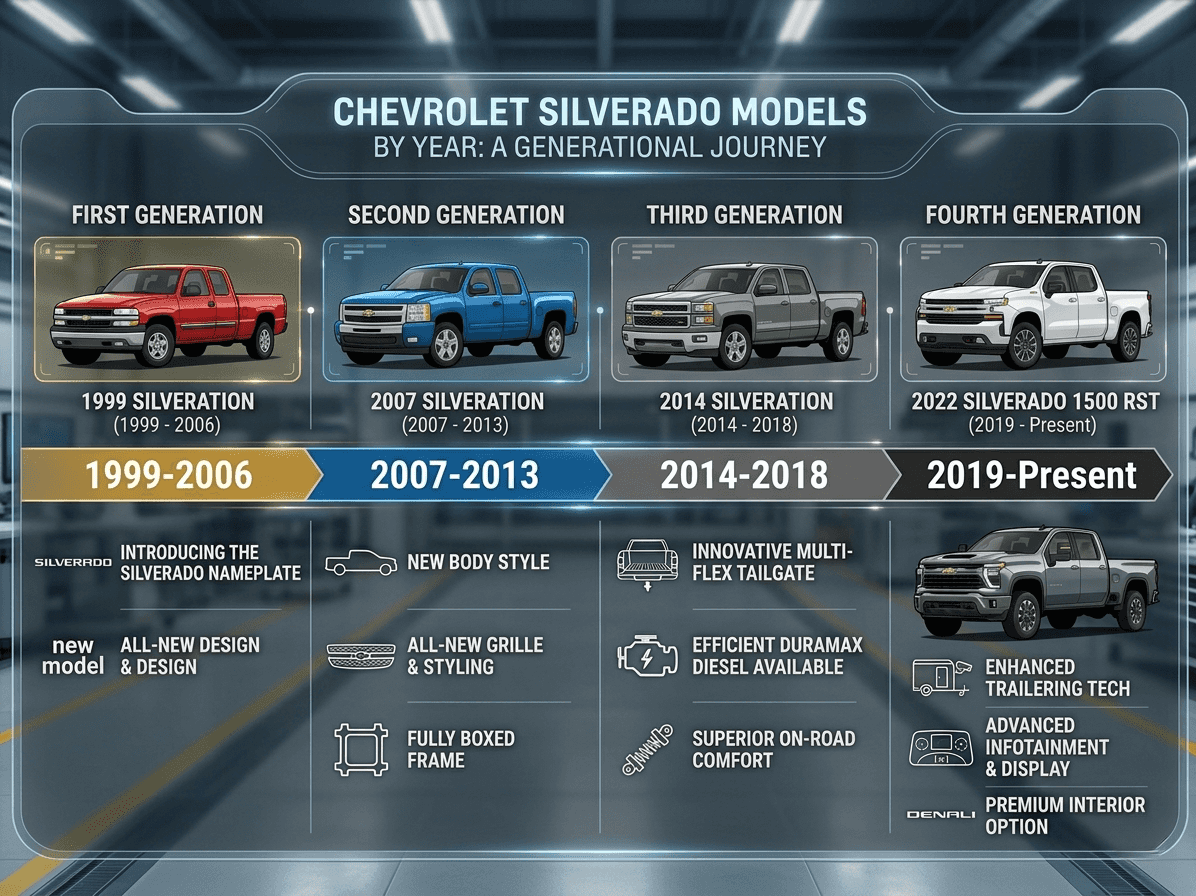
Whether you’re driving a classic 2003 Silverado or a tech-packed 2022 model, changing the time is straightforward once you know the right method for your year. Use the quick tap method for newer trucks, hold the SET button for older ones, and always double-check after battery work. While automatic sync sounds ideal, most Silverados still require manual updates due to software limitations. Save this guide for quick reference, and never let your truck run on “ghost time” again.