Is your Chevy Silverado infotainment screen frozen, black, or completely unresponsive? You are not alone. Silverado owners across 1500, 2500HD, 3500HD, and High Country trims regularly report flickering displays, touch failure, random reboots, and missing apps. The good news is that most of these problems are software-related and fixable at home without a dealership visit.
This guide walks you through three proven reset methods, from quick soft reboots to deep battery discharges. You will also learn how to check fuses, inspect wiring, update software, and identify when professional repair is the smarter move. Whether your screen is stuck on GPS, trapped in a boot loop, or totally dark, you will find a working solution here.
Soft Reset the Chevy Silverado Screen

A soft reset is your first move for any frozen or unresponsive screen. It restarts the head unit without erasing your saved settings, Bluetooth pairings, or radio presets.
Hold the Power and Volume Knob
- Locate the Power and Volume knob on your infotainment panel.
- Press and hold it firmly for 10 to 15 seconds.
- Keep holding until the screen goes completely black.
- Release when the Chevrolet logo appears and the system begins to reboot.
- Wait 30 to 60 seconds for the system to fully boot.
This method clears minor software hangs and restores touch responsiveness in most cases.
Use the Steering Wheel Phone Button
If the volume knob does not trigger a reset, try this alternative:
- Press and hold the phone button on your steering wheel.
- Hold it for exactly 10 seconds.
- The screen should turn off and restart automatically.
This works especially well when audio still plays but the screen will not respond to touch.
Press Home and Fast Forward Together
For stubborn systems that ignore the other methods:
- Simultaneously press and hold the Home button and the Fast Forward button.
- Hold the combination for 10 seconds.
- The screen will black out and reboot.
Some Silverado models respond better to this combo than the volume knob method.
Pro Tip: Perform a soft reset every few weeks, even when nothing is wrong, to clear memory cache and prevent slowdowns before they start.
Perform a Full Vehicle Power Cycle
If the screen stays frozen after a soft reset, a full vehicle power cycle forces every module, including the infotainment system, to shut down and refresh.
Turn Off and Open the Driver Door
- Shift into Park and turn off the ignition.
- Open the driver’s door to trigger the full shutdown sequence.
- Wait at least 60 seconds for capacitors in the infotainment system to drain.
- Close the door.
- Restart the engine and check the screen.
This method clears temporary memory errors and often fixes flickering, dimming, or delayed startup issues.
Why the door matters: Leaving the driver door open signals the vehicle’s electrical system to power down secondary modules. This bypasses the sleep mode that can keep the head unit partially active.
Execute a Hard Battery Reset on Your Silverado

For recurring glitches like random station changes, OnStar malfunctions, or a black screen that survives every soft reset, a hard battery reset forces a complete system discharge.
Disconnect Both Batteries
- Turn off the vehicle and remove the key.
- Locate the primary and auxiliary batteries (common in HD and diesel models).
- Using proper tools and safety gear, disconnect both the positive and negative terminals.
- Keep the cables separated to avoid a short circuit.
Drain Residual Power
- Touch the disconnected positive and negative cables together for 3 to 5 seconds.
- This drains leftover power stored in the vehicle’s electrical system.
Wait and Reconnect
- Leave the batteries disconnected for at least 30 minutes.
- Reconnect the positive terminal first, then the negative terminal.
- Tighten both terminals securely.
- Start the vehicle.
The infotainment system may take 2 to 3 minutes to reboot fully. This deep reset clears corrupted memory and resets all ECUs, often fixing persistent software bugs.
Warning: A hard reset may require you to re-pair Bluetooth devices and reset your clock and radio presets.
Check for Blown Infotainment Fuses
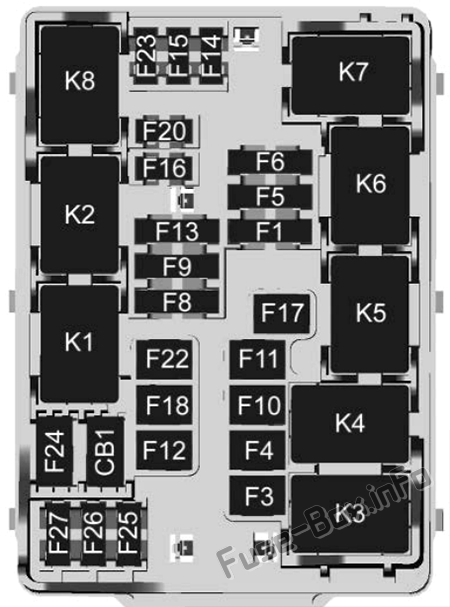
If your Chevy Silverado screen stays black after every reset, a blown fuse could be cutting power to the head unit.
Locate the Fuse Box
Check both of these locations:
– Driver’s side dashboard behind a small panel near the kick plate
– Engine compartment under the hood
Identify and Inspect Key Fuses
Look for fuses labeled with any of these names:
– Infotainment
– Radio
– Display
– IPC (Instrument Panel Cluster)
Use the diagram printed on the fuse box lid to find the correct slot.
Replace a Blown Fuse
- Pull the fuse using a fuse puller or a pair of tweezers.
- Inspect the metal filament inside. A broken or blackened filament means the fuse is blown.
- Replace it with a new fuse of the same amperage (usually 10A or 15A).
- Never install a higher-rated fuse, since this risks serious electrical damage.
After replacement, restart the vehicle and check the screen.
Common Cause: Blown fuses often result from power surges, aftermarket accessories, or short circuits during installation.
Verify Wiring and Cable Connections

Loose or damaged wiring behind the head unit can cause intermittent screen failure that resets cannot fix.
Inspect External Cables
- Unplug and reseat all USB, AUX, and charging cables.
- Test with different cables, since faulty ones can confuse the system and freeze the display.
Check the Internal Harness (Advanced)
If resets and fuses do not solve the problem:
1. Remove the infotainment bezel using plastic trim tools.
2. Gently slide the head unit out of the dash.
3. Inspect the power and data connectors on the back.
4. Confirm they are fully seated and clicked into place.
5. Look for bent pins, corrosion, or frayed wires.
Caution: Dashboard disassembly can damage airbag sensors or trim clips. If you are unsure, let a professional handle this step.
Update the Infotainment Software
Outdated firmware is a leading cause of crashes, missing apps, and compatibility issues on the Chevy Silverado screen.
Use Over-the-Air Updates
- Go to Settings, then System or Software Information.
- Tap Check for Updates.
- If an update is available, download and install it.
- Keep the engine running or the vehicle plugged in during installation.
- The system will restart automatically when finished.
OTA updates fix bugs, improve stability, and can restore missing features like Wi-Fi hotspot or Google Assistant.
Visit the Dealer for Flash Updates
If the screen is unresponsive or OTA updates fail:
– A dealership technician can flash the latest firmware using GM diagnostic tools.
– This is required for vehicles stuck in boot loops or suffering from corrupted software.
Note: Some features like Maps or the Play Store may be hidden due to regional software locks or an inactive OnStar membership, not a system fault.
Diagnose Missing Apps or Features
If your High Country or imported Silverado is missing apps like Maps, Podcasts, or Wi-Fi, the issue may not be a glitch at all.
Confirm OnStar Activation
- Open the OnStar menu on the infotainment screen.
- Check your membership status.
- An active subscription is often required to unlock GPS, Wi-Fi, and voice assistant features.
Check Regional Software Settings
- Some international models ship with region-locked apps.
- A factory reset will not restore these features if they were never enabled.
- A full software reflash with the correct region code may be needed, and only a dealership can perform it.
Look for Hidden Menus
- Apple CarPlay and Android Auto may appear in a Projection or Phone menu, not the main home screen.
- Swipe left or right across the home screen, or open the app drawer, to find missing icons.
When to Seek Professional Repair
If every reset method fails, the problem is likely hardware-related and needs a technician.
Signs You Need a Technician
- The screen stays black after a battery reset and fuse replacement.
- The system randomly restarts while you are driving.
- Audio, Bluetooth, and navigation all fail at the same time.
- Error messages like “Software Corrupted” or “System Failed” keep appearing.
Identify Your Radio Model Using the RPO Code
Before scheduling any repair:
1. Open the glove box or check the driver’s door jamb.
2. Find the RPO code tag or the QR code sticker.
3. Look for codes like IO5, IO6, or UYS, which identify your exact radio unit.
This ensures you get the correct replacement part or the right repair service.
Repair vs. Replace the Radio
- Repair: Specialists like M&R Auto Electronic can fix internal circuitry for $150 to $250, far cheaper than a new unit.
- Replace: OEM units cost $600 or more and require programming by a dealer.
- Myth: Replacing only the glass screen rarely works, since the fault almost always lives in the main circuit board.
Expert Tip: Always record your RPO code and consider repair before buying a brand new head unit.
Prevent Future Screen Issues
Keep your Silverado infotainment system running smoothly with these simple habits.
Schedule Regular Reboots
- Perform a soft reset (hold the power knob) once a month.
- This clears cache and prevents memory overload before it causes a freeze.
Use High-Quality Cables
- Cheap USB cables can cause voltage spikes or data errors.
- Stick to MFi-certified or OEM cables for phones and updates.
Manage Paired Devices
- Delete unused Bluetooth devices from the system.
- Clear old navigation destinations and unused app data.
Maintain Battery Health
- A weak battery causes voltage drops that can corrupt infotainment software.
- Replace the battery if it is more than 4 to 5 years old or struggles to start the engine.
Frequently Asked Questions About Resetting a Chevy Silverado Screen
How long do you hold the power button to reset a Chevy Silverado screen?
Hold the Power and Volume knob for 10 to 15 seconds until the screen goes black and the Chevrolet logo appears. Release the button once the reboot starts.
Will resetting my Silverado screen delete my Bluetooth pairings?
A soft reset keeps all your paired devices and settings intact. Only a hard battery reset may require you to re-pair your phone and reset your clock and radio presets.
Why is my Chevy Silverado screen black but the radio still works?
This usually points to a frozen display module or a loose video connection. Try the steering wheel phone button reset first, then move to a full vehicle power cycle if the screen stays dark.
Where is the infotainment fuse on a Chevy Silverado?
Check the driver’s side dashboard fuse panel and the under-hood fuse box. Look for fuses labeled Infotainment, Radio, Display, or IPC on the lid diagram.
Can I update my Silverado infotainment system without going to the dealer?
Yes, most newer Silverados support over-the-air updates through Settings, then System, then Software Information. If the screen is unresponsive or no update appears, a dealership flash is required.
How much does it cost to replace a Chevy Silverado radio?
A new OEM head unit costs around $600 or more, plus programming fees. Professional repair of the existing unit typically runs $150 to $250, making it the more affordable option in most cases.
Key Takeaways for Resetting Your Chevy Silverado Screen
Most Chevy Silverado screen problems trace back to software glitches, not hardware failure. Start with the soft reset, then escalate to a vehicle power cycle, and finally a hard battery reset if the issue persists. Always check the fuses and wiring before assuming the head unit is dead. Keep your software updated and your battery healthy to avoid repeat problems. With these steps, you can restore your infotainment system quickly and skip the dealership in most cases.