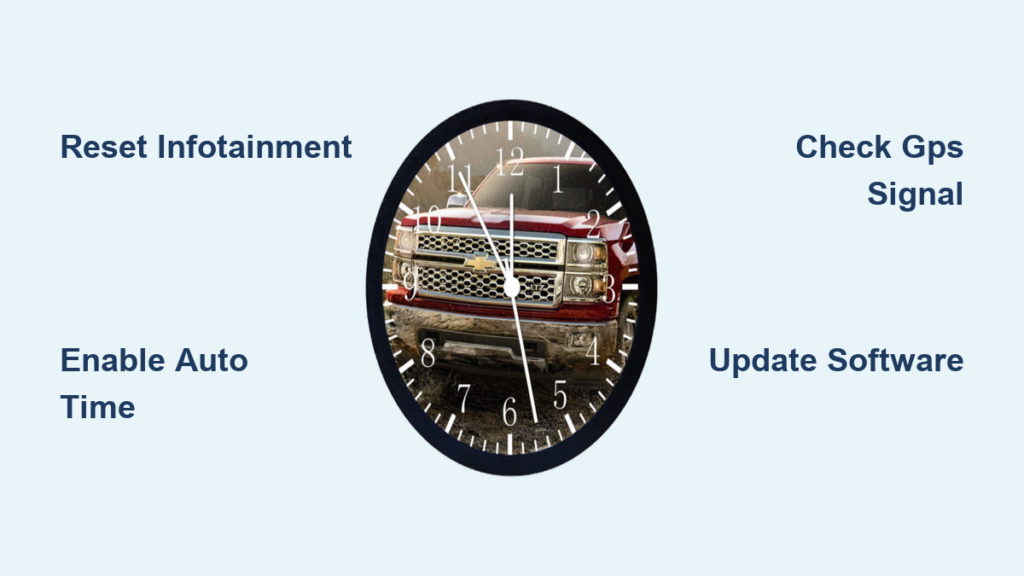
You’re driving your Chevrolet Silverado, glancing at the dashboard to check the time, only to realize the clock hasn’t updated in days. Maybe it stayed frozen after a dead battery, a firmware glitch, or a recent software update. A stuck or inaccurate clock might seem minor, but it disrupts your daily routine, affects infotainment sync, and can even throw off scheduled reminders. If you’re dealing with a Silverado clock not updating, you’re not alone. This common issue impacts many owners across model years, especially those with factory-installed radios and connected infotainment systems.
The root cause usually ties back to how your truck syncs time, either through GPS signals, cellular data (on equipped models), or manual settings that fail to save. The good news: most fixes are simple and don’t require a dealership visit. Whether you have an older model with a basic radio or a newer LTZ with Android Auto and Apple CarPlay, this guide walks you through step-by-step solutions. You’ll learn how to reset the system, force a time sync, check settings, and prevent future issues, all without opening the hood or touching a wrench.
By the end, you’ll know exactly how to get your Silverado clock not updating problem resolved in under 10 minutes.
Reset the Infotainment System

A soft reset often resolves glitches preventing automatic time updates.
Perform a Soft Reboot
Turn off the truck and press and hold the power and eject (or home) buttons on the radio for 10 to 15 seconds. The screen will go black, then reboot. This clears temporary software bugs that may block GPS or network time syncing.
Wait for the system to fully restart before checking the clock. If it still shows the wrong time, proceed to settings.
Try a Hard Reset (If Needed)
For persistent issues, disconnect the battery:
1. Turn off the engine.
2. Open the hood and disconnect the negative terminal.
3. Wait 5 to 10 minutes to drain residual power.
4. Reconnect and start the truck.
This resets all electronic control units, including the radio module responsible for time display.
Warning: A hard reset may erase saved radio stations or personalized settings.
Check Automatic Time Settings

Your Silverado relies on settings to update the clock, and manual mode disables syncing.
Enable “Set Time Automatically”
- Press the Home button on your infotainment screen.
- Go to Settings > Date & Time.
- Tap Set Time Automatically and ensure it’s turned ON.
If grayed out, the system may need GPS signal or network access first.
Select Correct Time Zone
Even with auto-time enabled, an incorrect time zone causes wrong displays:
– In Date & Time, tap Time Zone.
– Choose your current zone manually (for example, Eastern or Central).
– Disable “Set Automatically” if it’s using outdated location data.
Some users report the system defaults to UTC or wrong zones after resets.
Verify GPS Signal Reception

The clock uses GPS data to auto-update, so poor signal means no sync.
Look for GPS Indicator
On most Silverado infotainment screens:
– Tap the Settings gear.
– Navigate to System > About > Location.
– Check if GPS is enabled and showing signal strength.
If “No Signal” appears, the system can’t fetch time data.
Improve GPS Acquisition
Park the truck in an open area away from tall buildings or garages. Let it sit with the engine running for 5 to 10 minutes to acquire satellite lock.
Pro Tip: Drive for 15 or more minutes on a clear day to restore full GPS functionality after battery disconnection.
Update Radio Software
Outdated firmware can break time-sync features.
Check for System Updates
- Go to Settings > System > Software Update.
- Tap Check for Updates.
- Install any available patches.
GM frequently releases updates fixing bugs related to time display, Bluetooth pairing, and navigation.
Note: Requires Wi-Fi or OnStar connection (if active).
Manual Update via USB (Advanced)
If no update appears:
1. Visit GM’s official software portal.
2. Enter your VIN to download the correct firmware.
3. Load it onto a USB drive.
4. Insert into the truck’s USB port and follow prompts.
Always back up settings before updating.
Inspect Battery and Electrical Health
Low voltage or power interruptions confuse the clock module.
Test Battery Voltage
Use a multimeter:
– Set to DC volts.
– Touch red probe to positive terminal, black to negative.
– Reading below 12.4V indicates a weak battery.
A failing battery causes repeated resets, preventing time retention.
Check for Parasitic Drain
If the clock resets every time you turn off the truck:
– Fuse #41 (Radio/Battery Backup) may be blown or loose.
– Inspect the fuse in the underhood junction box.
– Replace if corroded or damaged (typically a 10A fuse).
Also ensure the radio receives constant power, not just ignition-switched.
Bypass Sync with Phone Connection

Use smartphone pairing to force correct time.
Pair iPhone or Android
- Enable Bluetooth on your phone.
- On the truck: Settings > Bluetooth > Add Device.
- Complete pairing.
Once connected, the infotainment system pulls time from your phone’s network.
Important: Ensure your phone has “Set Time Automatically” enabled in its own settings.
Use Apple CarPlay or Android Auto
Plug in via USB:
– CarPlay and Android Auto override the factory clock with phone time.
– Even if the main display lags, the CarPlay screen shows accurate time.
This is a reliable workaround if factory sync fails.
Replace Faulty Radio Module (Last Resort)
If nothing works, hardware failure is likely.
Diagnose Radio Failure
Symptoms include:
– Clock resets after every shutdown.
– No GPS detection despite clear skies.
– Software updates fail repeatedly.
– Screen lags or freezes.
These suggest a failing radio or internal memory issue.
Install New or Refurbished Unit
Options:
– OEM Replacement: From dealer (expensive but guaranteed fit).
– Aftermarket Radios: Compatible units with better time-sync reliability.
– Refurbished: Cost-effective, often preloaded with latest software.
After installation, reprogram the VIN and calibrate sensors if needed.
Expert Tip: Some 2014 to 2018 models had known radio firmware bugs. Check the GM recall database.
Prevent Future Clock Issues
Keep your Silverado’s time accurate long-term.
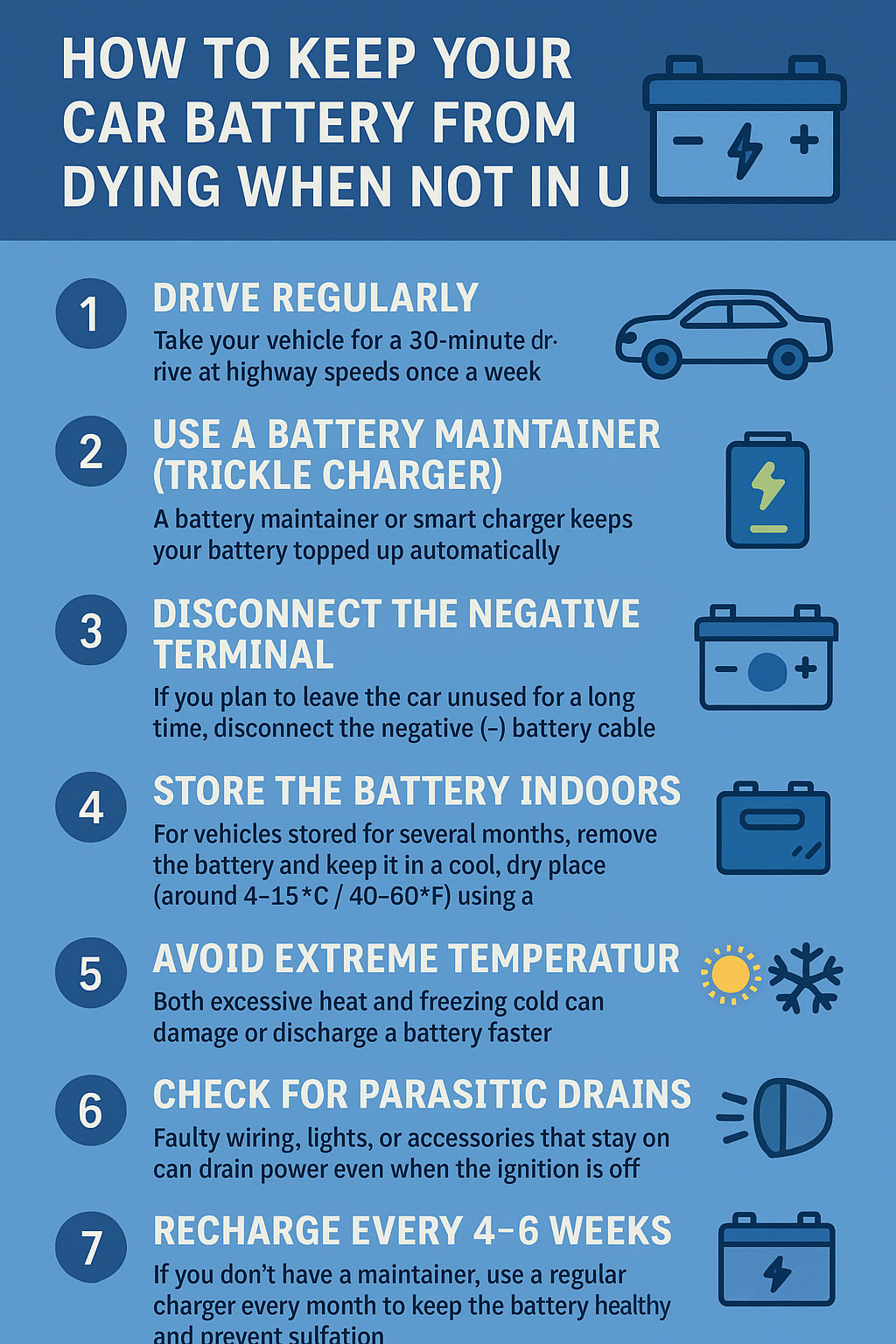
Maintain Battery Health
- Start the truck weekly if parked long-term.
- Use a battery maintainer in cold climates.
- Replace batteries older than 4 to 5 years.
Schedule Regular Software Checks
- Check for updates every 3 to 6 months.
- Reset the system after major updates.
- Clear cache periodically (via hidden menu or dealer tool).
Avoid Manual Time Changes
Let the system auto-sync. Manually setting the clock can disable automatic updates until reset.
Frequently Asked Questions About Silverado Clock Not Updating
Why does my Silverado clock keep resetting after I turn off the truck?
This usually points to a weak battery, a blown backup fuse, or a failing radio module. Test your battery voltage and inspect Fuse #41 in the underhood junction box first.
Can a dead battery cause the Silverado clock to stop updating?
Yes. A dead or recently jumped battery often disrupts GPS data and time retention. After reconnecting power, the system may need several minutes to reacquire satellite signal and resync.
How do I force my Silverado clock to update right now?
Enable automatic time and time zone in Settings, then drive in an open area for 10 to 15 minutes. This allows the GPS module to lock onto satellites and refresh the display.
Does OnStar affect the clock on a Silverado?
On equipped models, OnStar uses network time protocol to keep the clock accurate. If your OnStar subscription is inactive or the antenna has issues, the system may fall back to GPS only or manual mode.
Will disconnecting the battery fix a stuck clock?
Sometimes. A hard reset clears software errors that block syncing. However, it also wipes saved presets, so use this method only if softer resets fail.
Key Takeaways for Fixing Your Silverado Clock Not Updating
Start with the simplest solution: a soft reboot of the infotainment system. If that fails, verify automatic time settings and confirm your GPS signal is active. Battery health and software updates solve most remaining cases, while phone-based syncing offers a reliable temporary fix. For hardware-level problems, professional diagnostics or radio replacement may be the only path forward.
Your next step: try the soft reboot and settings check today. In most cases, you’ll have your Silverado clock displaying the correct time within minutes, without any tools or trips to the dealer.