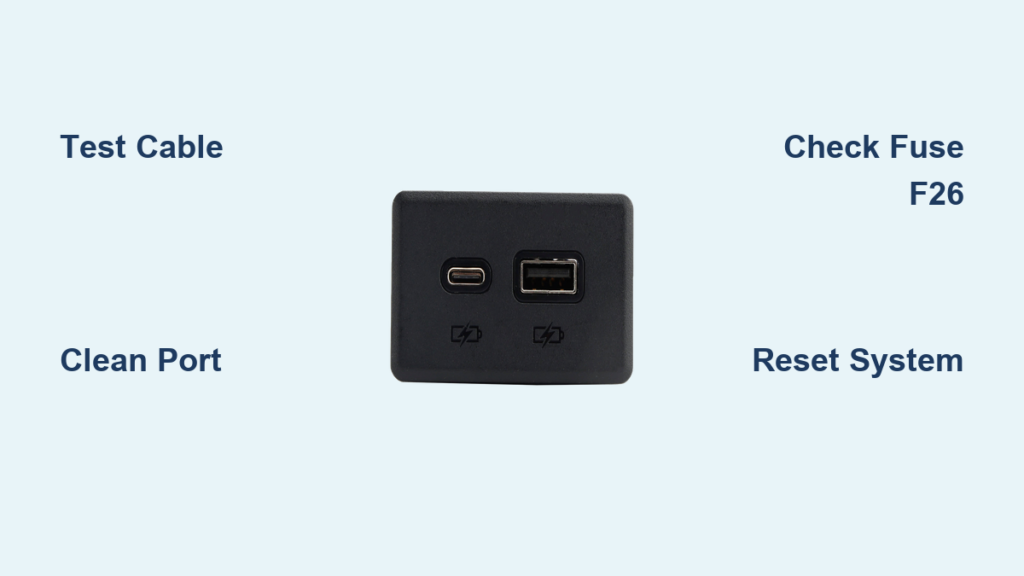
If your Silverado USB port not working, you’re not alone. From complete power loss to intermittent charging and data connection failures, USB port issues plague many Chevrolet Silverado and GMC Sierra owners, especially on 2019–2025 models. Whether you drive a gas-powered pickup or the new EV variant, a dead USB port can disrupt charging, media playback, and connectivity. The good news? Most problems stem from simple causes like blown fuses, dirty ports, faulty cables, or software glitches, not major hardware failure. This guide walks you through every step to diagnose and fix your Silverado USB port issue quickly, avoiding unnecessary dealership visits and costly repairs.
We’ll cover model-specific symptoms, proven troubleshooting steps, fuse locations, software resets, and even how to replace the USB module yourself in under 10 minutes. Whether your port stopped working after a software update or just won’t recognize your phone, you’ll find the exact solution here.
Check Your Cable and Device First
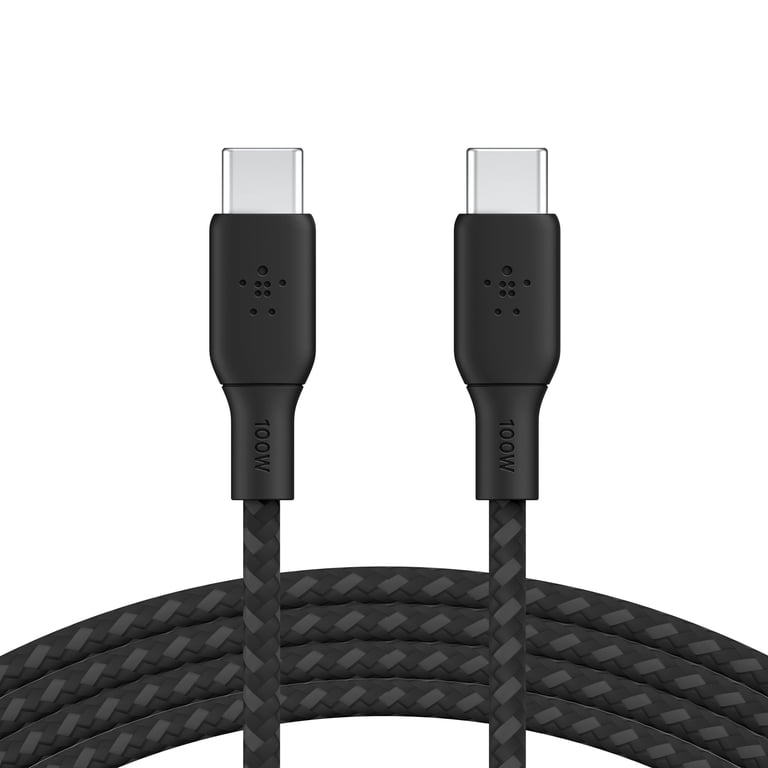
Before tearing into your dashboard, rule out the most common culprit: a bad cable or device.
Test with a Known-Good Cable
Many “broken” USB ports are actually fine. The issue lies with low-quality or damaged cables. Generic USB-C cables often lack Power Delivery (PD) support or proper resistance coding, preventing the vehicle from delivering full power. Always test using:
– The original cable that came with your phone
– A certified USB-IF compliant cable
– A high-quality brand (e.g., Anker, Belkin, Samsung OEM)
If your phone charges in other vehicles or wall outlets but not in your Silverado, the cable is likely the problem.
Try Multiple Devices
Plug a different phone or tablet into the port. If it works, the issue is with your original device. If no device powers up, the problem is in the vehicle.
Use All Vehicle Ports
Test the suspect device in other USB ports, like the one under the center console armrest or rear passenger ports. If it works elsewhere, the dashboard USB-C port is isolated as the fault.
Clean the USB Port Safely
Dirt, lint, and debris are frequent causes of intermittent or failed connections.
Inspect for Blockages
Use a flashlight to peer into the USB-C port. Look for:
– Visible lint or dust buildup
– Food crumbs or pocket debris
– Bent or discolored internal pins
Remove Debris Gently
Warning: Never use metal tools like paperclips. They can short the pins or damage the port.
Instead:
– Use compressed air to blow out loose particles
– Gently scrape with a plastic toothpick or non-conductive pick
– Angle the tool to avoid pushing debris deeper
After cleaning, retest with a known-good cable and device.
Reboot the Infotainment System
Software glitches can disable USB functionality even if hardware is intact.
Perform a Soft Reset
For 2020–2025 Silverado models:
1. Turn the vehicle on (or to ACC mode)
2. Press and hold the infotainment power button (usually at the bottom of the screen)
3. Hold for 10–15 seconds until the screen goes black
4. Wait for the system to reboot and relaunch
This clears temporary software errors that may block USB communication.
Check for Software Updates
GM has released updates specifically to fix USB issues:
– Visit a dealership or use the myChevrolet app to check for pending updates
– Some users report restored USB function after a recent TCU or infotainment update
– If your port failed after a prior update, a newer patch may resolve it
Inspect Fuse F26
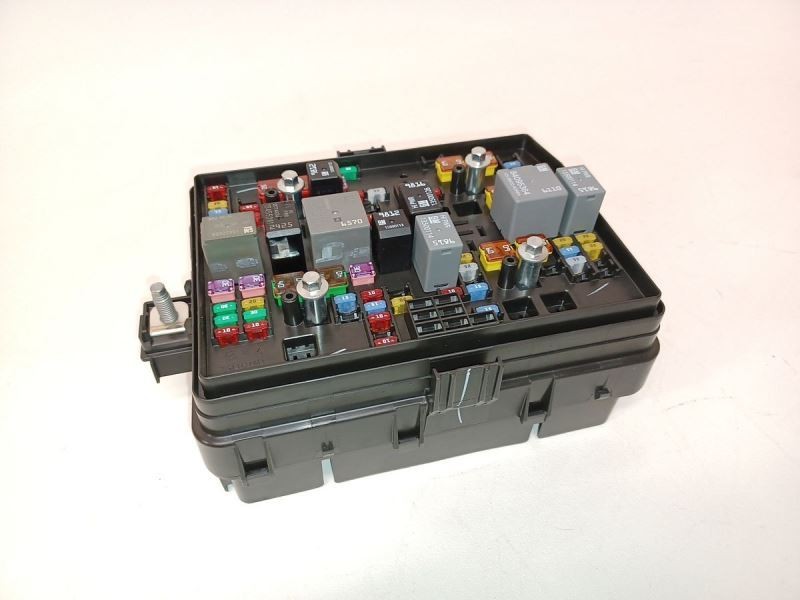
A blown fuse is a top cause of total USB port failure.
Locate Fuse F26
In most Silverado models (2019–2023), the USB power fuse is:
– Fuse F26
– Located on the passenger-side dashboard, accessible when the door is open
– Rated at 10A (red color)
Reset or Replace the Fuse
- Open the fuse panel cover
- Find F26 using the diagram on the lid
- Remove the fuse with the included puller or tweezers
- Inspect the metal strip inside:
– Intact = no break
– Broken or blackened = blown - If blown, replace with a 10A fuse
- If intact, remove and reinsert. This can reset the circuit and restore power
Many users report this simple step brings their USB port back to life instantly.
Diagnose Software-Specific Issues (2024–2025 EV)
New Silverado EV models have unique USB behaviors tied to their Google-based infotainment.
Recognize the “Charge-Then-Stop” Pattern
On 2024–2025 EVs, a common symptom is:
– Device starts charging
– Stops after 30 seconds to 2 minutes
– May restart charging when unplugged and replugged
This is not a hardware failure. It’s a known software bug.
Follow TSB PIT6098B Guidance
GM Technical Service Bulletin PIT6098B confirms this issue and advises:
– Do not replace hardware, as it won’t fix the problem
– The root cause is software-based power management
– A future system update is required for a permanent fix
– For now, rebooting the infotainment may provide temporary relief
EV owners should contact Chevrolet support with their VIN to check eligibility for upcoming patches.
Replace the USB Module (DIY Guide)
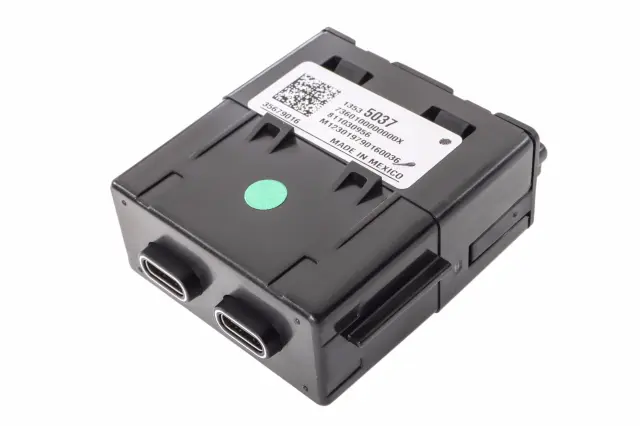
If cleaning, resetting, and fuse checks fail, it’s time to replace the module, especially if the port feels loose or wobbly.
Gather Tools and Parts
You’ll need:
– Plastic trim removal tool (pry tool)
– Flashlight
– Replacement USB module (OEM or used)
OEM Part Numbers (2024–2025 EV):
– 13535037
– 13564502
– 13536368
– 13555617
Note: Gas and EV models use different modules. Verify compatibility before purchasing.
Remove the Old Module
- Insert the plastic pry tool into the gap between the USB bezel and dashboard
- Gently twist to release the retaining clips. Start at the bottom
- Work around the edges until the module loosens
- Pull it forward carefully to avoid damaging wires
Disconnect and Reconnect Wiring
- Locate the two connectors on the back
- One may have a red locking tab. Pull it outward first
- Press the release tab and pull the connector straight out
- Repeat for the second connector
Install the New Module
- Align the new module’s connectors with the harness
- Push each connector in firmly until it clicks
- Re-engage any red locking tabs
- Slide the module into the dashboard opening
- Press around the edges until all clips snap into place
Test Immediately
Plug in a known-good device and cable. Confirm:
– Charging begins immediately
– Data connection works (if applicable)
– No wobble or looseness in the port
Most users complete this repair in under 10 minutes.
Prevent Future USB Failures
Avoid recurring issues with these simple habits.
Use a Dedicated In-Car Cable
Leave a high-quality cable plugged into the port at all times. This reduces mechanical wear from repeated plugging and unplugging, which is the #1 cause of port loosening.
Keep the Port Covered
When not in use:
– Insert a rubber USB cover
– Use a dash kit with a sliding door
– Prevent dust and debris buildup
Avoid Aftermarket Cables
Stick to certified, name-brand cables. Cheap ones can:
– Deliver unstable power
– Trigger over-current protection
– Damage the port over time
Know When to Visit the Dealer
Some issues require professional attention.
Seek Dealer Help If:
- All USB ports are dead and fuse F26 is good
- The harness behind the module is damaged or unplugged
- You own a 2024–2025 EV and TSB PIT6098B applies
- Software updates are pending but unavailable remotely
Dealers can reseat harnesses, run full diagnostics, and apply updates not accessible to owners.
Understand Repair Costs
Fixing a USB port doesn’t have to be expensive.
| Repair Option | Cost (USD) | Time |
|---|---|---|
| DIY Fuse Reset | $0 | 2 min |
| Clean Port | $0 | 5 min |
| Replace Module (DIY) | $35–$105 | 10 min |
| Dealer Labor | $50–$120 | 30–60 min |
Pro Tip: Used OEM modules from salvage yards or eBay often work perfectly and cost half as much as new.
Differentiate Port Types

Don’t confuse your USB ports with other slots.
USB-C vs. USB-A vs. SD Slot
- USB-C (oval): Primary dash port, supports charging + data
- USB-A (rectangular): Older style, often under armrest
- SD Card Slot: Long, narrow slot. This is not a USB port
Misidentifying the SD slot as a USB port leads to unnecessary frustration.
Frequently Asked Questions About Silverado USB Port Problems
Why did my Silverado USB port suddenly stop working?
Sudden USB port failure typically results from a blown fuse (F26), a loose cable connection, debris inside the port, or a software glitch after a recent update. Start by testing with a known-good cable and inspecting fuse F26 before assuming hardware damage.
Where is the USB fuse located on a 2019–2023 Silverado?
The USB power fuse (F26) is located on the passenger-side dashboard fuse panel, accessible when the front passenger door is open. It’s a 10A red fuse. Removing and reinserting it can often reset the circuit and restore USB power.
Is the “charge then stop” issue on 2024–2025 Silverado EVs a hardware problem?
No. According to GM Technical Service Bulletin PIT6098B, the “charge-then-stop” pattern is a software defect. GM explicitly advises against hardware replacement for this symptom. A future software update is required for a permanent fix.
Can I replace the Silverado USB port module myself?
Yes. The dashboard USB module is a low-difficulty DIY repair that takes 5–10 minutes. You’ll need a plastic pry tool and a replacement module. Simply pop out the old module, disconnect two wiring harnesses, and install the new one.
How much does it cost to fix a Silverado USB port?
Costs vary by repair method: a DIY fuse reset or cleaning is free, a DIY module replacement costs $35–$105 for parts, and dealer labor typically runs $50–$120 on top of parts.
Do cheap USB cables really damage my truck’s USB port?
Yes, low-quality cables can cause problems. Cables lacking proper Power Delivery or resistance coding can trigger over-current protection, deliver unstable voltage, and accelerate wear on the port’s internal pins.
Key Takeaways for Fixing Your Silverado USB Port
A Silverado USB port not working is rarely a terminal issue. Most fixes are fast, free, or inexpensive. Start with the simplest solutions: test your cable, clean the port, reboot the system, and check fuse F26. For 2024–2025 EV owners, remember that “charge-then-stop” is a software bug, so don’t waste money on hardware. If replacement is needed, the dash USB module swaps out in minutes with basic tools.
Your next step is simple: grab a known-good cable and test your port right now. If that doesn’t work, pull fuse F26 and reinsert it before scheduling any service. You’ll likely restore your USB functionality within minutes and save yourself a trip to the dealership.