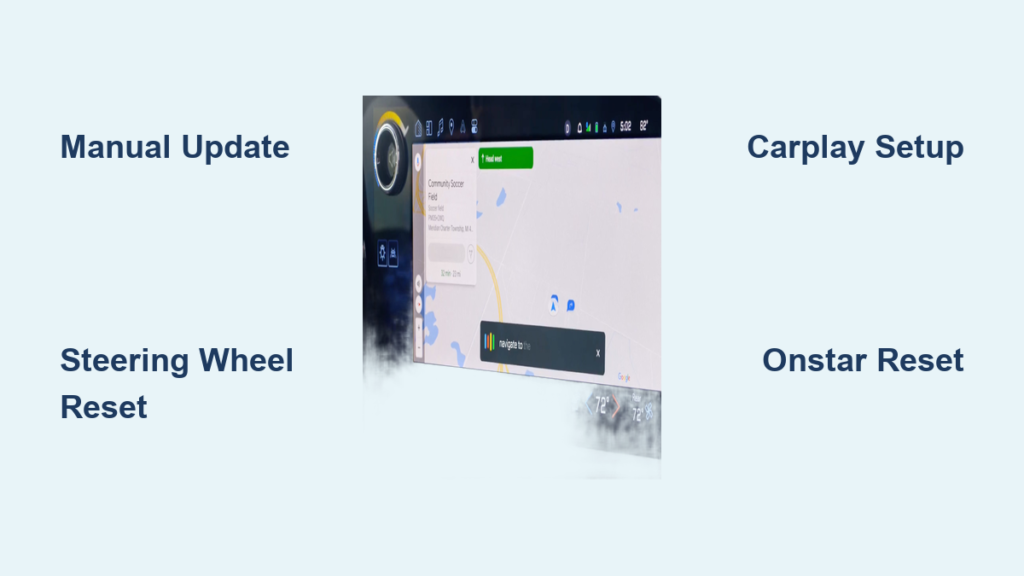
If Google Maps is not working in your Chevy Silverado, you are likely staring at a frozen map, a “Can’t connect to Google” error, or a location dot that refuses to move. This frustrating issue has hit 2022–2025 Silverado trucks hard, with widespread reports of GPS failure, app crashes, and persistent offline errors. Even trucks with active data plans and functioning Apple CarPlay can experience these glitches without warning. The root causes range from outdated app versions and software bugs to faulty OnStar modules and misconfigured smartphone integration. The good news is that most problems can be fixed quickly using a combination of official updates, simple resets, and proper setup steps. In this guide, you will learn how to diagnose and resolve every major failure mode, whether you are dealing with static location tracking, constant crashes, or Apple CarPlay GPS conflicts.
Update Google Maps Manually in Your Chevy Silverado

Access the Hidden Update Screen
GM’s official fix for the “Can’t connect to Google” error is a manual app update. The update prompt is hidden, so you must navigate through a specific path to find it:
- Open Google Maps on your Silverado’s infotainment screen.
- Tap the gear icon in the top-left corner.
- Scroll down and select About & Help.
- Find the version number formatted as YY.MM.DDHHMM and tap it directly.
- If an update is available, tap Update and wait for installation.
This process resolves the offline error in many cases and is required even if your system shows it is up to date. Do not skip this step, because GM does not push these updates automatically.
Confirm an Active Data Connection
Before updating, ensure your vehicle has an active data plan. Even with Wi-Fi connected, the native Google Maps app relies on the embedded 4G/LTE modem through OnStar. Check these areas:
- Settings > Connected Services > OnStar/Diagnostics for connectivity status.
- Look for a data signal icon in the top-right of the screen.
- Try loading another connected app like weather or news.
If no data is detected, the update will fail. Contact OnStar to verify your plan status or request a remote reset.
Perform an Infotainment Reset to Restore GPS
Use the Steering Wheel Button
When Google Maps freezes or disappears, a hard reset of the infotainment system often restores GPS and app functionality:
- With the truck running and in Park, press and hold the Mute/End Call button on the steering wheel.
- Hold for 10 to 20 seconds until the screen goes black and reboots.
- Wait for the system to fully restart, which takes 30 to 60 seconds.
This clears temporary software glitches and is the fastest in-the-moment fix for static location or crashing maps.
Recognize System Crash Signs
After a reset, watch for these visual cues that confirm instability:
- Map vanishes, leaving only a scroll bar.
- Speed or speed limit indicator stuck at one value.
- “No Route” loop during active navigation.
- XM radio or other apps restarting simultaneously.
If these occur frequently, the issue is likely deeper than a momentary freeze, and you should proceed to software or hardware troubleshooting.
Fix Apple CarPlay GPS Issues in Your Silverado

Complete Setup While Parked
If you use Google Maps via iPhone and see “Searching for GPS,” the truck is trying to use its internal antenna instead of your phone. Fix this by completing the Apple CarPlay handshake:
- Park the vehicle and engage the parking brake.
- Connect your iPhone using a certified Apple USB cable and avoid third-party or charging-only cables.
- Tap the CarPlay icon on the infotainment screen.
- Accept the “Allow CarPlay” prompt on your iPhone and the truck display.
- Once approved, unplug and test by replugging while driving. The connection should auto-resume.
After setup, your phone’s GPS will override the truck’s faulty signal, eliminating location freezes.
Avoid Common Setup Mistakes
Users fail CarPlay setup when they:
- Try to pair while driving, which Apple does not allow.
- Use non-MFi-certified cables that cannot transmit data.
- Disable CarPlay permissions on the phone.
If CarPlay still fails, go to Settings > Apple CarPlay on the infotainment screen and delete the device, then re-pair.
Contact OnStar for a Remote Reset
Request Module Troubleshooting
Call OnStar directly and request a remote connectivity module reset. This forces a refresh of the vehicle’s communication systems and has resolved “Can’t connect” errors without a dealership visit.
- Have your VIN ready.
- Clearly state: “My Google Maps shows offline. Can you reset the connectivity module?”
- Wait 2 to 5 minutes after the reset to test the app.
Many users report immediate success with this method, especially when no local fixes work.
Diagnose OnStar Module Failure
If the remote reset fails, the OnStar module may be defective. Symptoms include:
- No data connection across all apps.
- Inability to use remote start via the app.
- Frequent “No Service” warnings.
A faulty module requires physical replacement. Ask your dealer to run a TAC (Technical Assistance Center) diagnostic to confirm hardware failure. Note that parts may be on backorder, so check availability before scheduling.
Visit a Dealer for Flash or Repair
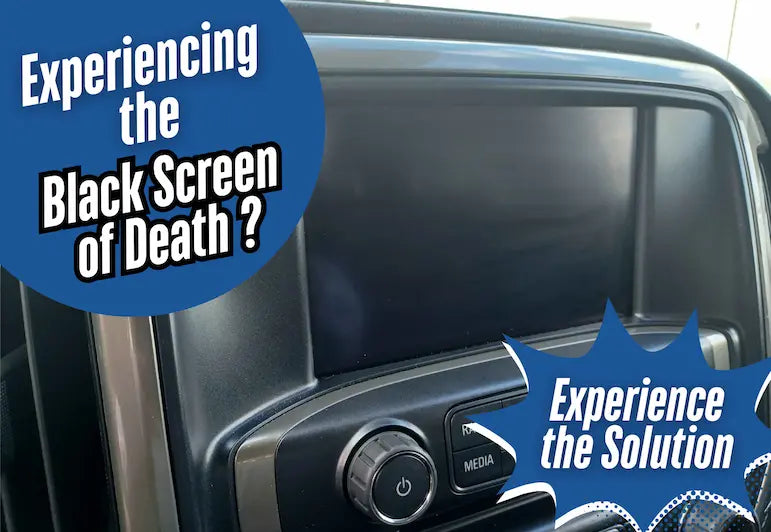
Request Module Reflashing
If software fixes fail, visit a Chevrolet dealership and request:
- Infotainment module flash with the latest firmware.
- Navigation system reinitialization.
- Check for active Technical Service Bulletins (TSBs) like PIT6151A.
Tell them: “I have done the manual update and resets, but this is recurring.” This ensures they go beyond basic troubleshooting.
Understand Warranty Coverage
Repairs for Google Maps failures should be covered under the bumper-to-bumper warranty, typically 3 years or 36,000 miles. Hardware replacements such as the OnStar module are also covered if diagnosed as defective.
Keep records of:
- Dates of failures.
- Reset attempts.
- OnStar call logs.
- Service visits.
This documentation helps if you need to escalate to GM Customer Care or pursue a lemon law claim due to repeated electrical issues.
Compare Native vs. Projected Navigation
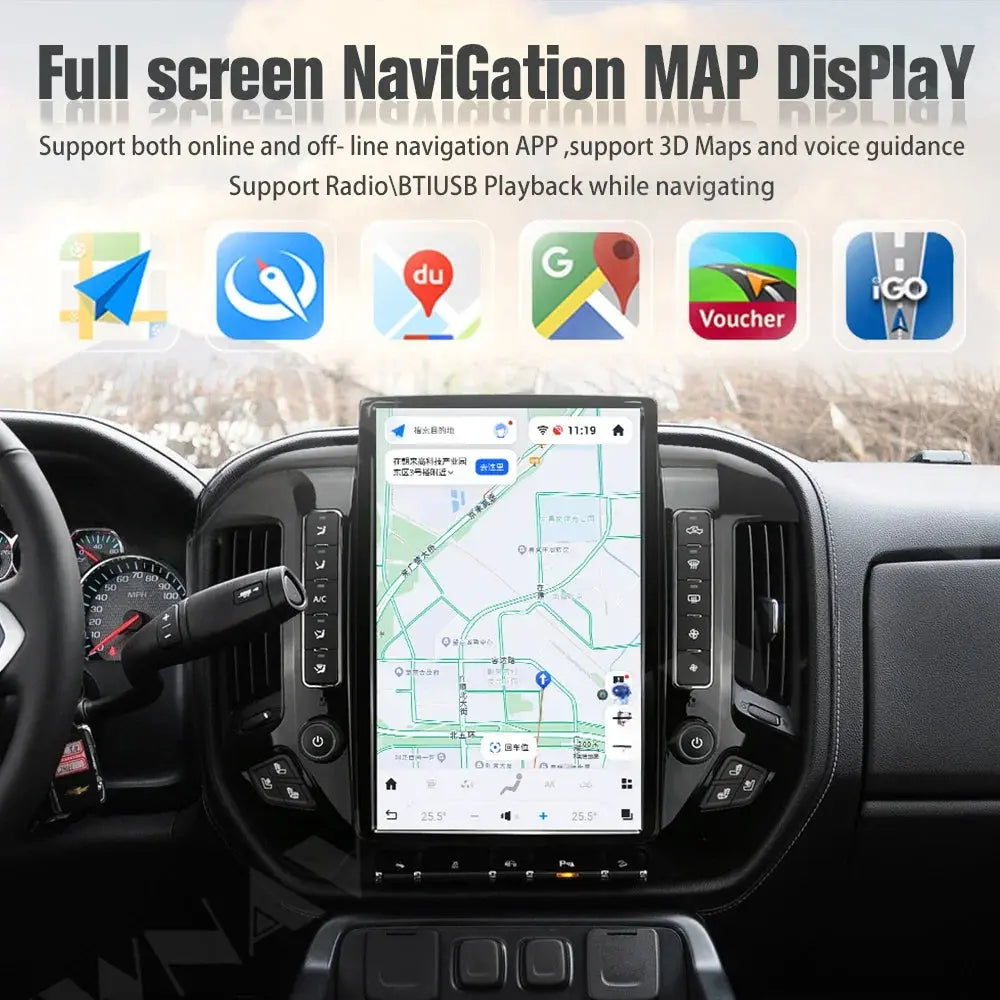
Choose the More Reliable Option
Until GM stabilizes the native system, Apple CarPlay and Android Auto are more reliable than built-in Google Maps.
| Feature | Native Google Maps | Smartphone Projection |
|---|---|---|
| GPS Accuracy | Often fails or freezes | Uses phone’s stable GPS |
| Crash Frequency | High in 2022–2025 models | Rare |
| Data Source | Vehicle’s 4G modem | Phone’s cellular connection |
| Setup Required | None but often broken | One-time CarPlay/AA setup |
For daily use, projection is the smarter choice, especially if your truck has recurring glitches.
Bypass the Faulty Internal GPS
Once CarPlay or Android Auto is set up, your phone’s GPS takes over. This bypasses the truck’s weak or failing internal antenna, eliminating “Searching for GPS” errors and static location issues.
Pro Tip: Use Android Auto Wireless if supported, or keep a certified USB cable in the cab for seamless plug-in navigation.
Prevent Future Google Maps Failures
Check for Updates Monthly
GM does not auto-update the Google Maps app, so make it a habit:
- Every 30 days, go to Maps > Settings > About & Help > Tap Version Number.
- Update immediately if a new version is available.
This prevents version-related outages before they happen.
Reset After Software Updates
After any OTA (over-the-air) system update from GM, perform a steering wheel reset. New firmware can cause app conflicts, and a reboot clears glitches before they affect navigation.
Avoid Relying on the Native System Alone
Given the instability, treat the built-in Google Maps as a backup. Use your phone for critical trips, especially in unfamiliar areas. The included 3-year data plan is a bonus, but it should not be a reason to risk getting lost due to a software bug.
Frequently Asked Questions About Google Maps Not Working in Chevy Silverado
Why does Google Maps say “Can’t connect to Google” in my Silverado?
This error typically means the Google Maps app on your infotainment system is outdated or the vehicle’s data connection is disrupted. Start by performing the manual app update through Maps > Settings > About & Help > tap the version number. If that fails, contact OnStar to verify your data plan and request a remote module reset.
How do I reset the Chevy Silverado infotainment system?
With the truck running and in Park, press and hold the Mute/End Call button on the steering wheel for 10 to 20 seconds. The screen will go black and reboot within 30 to 60 seconds. This clears temporary glitches that freeze Google Maps or cause GPS signal loss.
Why does Apple CarPlay show “Searching for GPS” in my Silverado?
This happens when the truck tries to use its internal GPS antenna instead of your iPhone’s GPS. The fix is to complete the CarPlay handshake while parked using a certified Apple USB cable. Accept the “Allow CarPlay” prompts on both the phone and the truck screen. After setup, your phone’s GPS will take priority.
Is the OnStar module covered under warranty if it causes Google Maps to fail?
Yes, OnStar module replacements should be covered under the bumper-to-bumper warranty, typically 3 years or 36,000 miles. If your dealer diagnoses a defective module, document all failure dates, reset attempts, and service visits to support any warranty or lemon law claims.
Should I use built-in Google Maps or Apple CarPlay/Android Auto in my Silverado?
Based on widespread user reports, Apple CarPlay and Android Auto are significantly more reliable than the native Google Maps app in 2022–2025 Silverado models. Smartphone projection uses your phone’s stable GPS and cellular data, bypassing the truck’s problematic internal antenna and modem.
Key Takeaways for Fixing Google Maps in Your Chevy Silverado
Google Maps not working in your Chevy Silverado is a widespread but fixable issue. Start with the manual app update and steering wheel reset, because these two steps solve most cases. iPhone users must complete CarPlay setup while parked to avoid GPS conflicts. If problems persist, contact OnStar or visit a dealer for remote resets or hardware diagnostics. Until GM releases a permanent software fix, using Apple CarPlay or Android Auto offers the most reliable navigation experience. Check for app updates monthly and reset your infotainment system after any OTA update to keep issues at bay.